

Instant System Restore for Windows Server: 2026 Buying Guide
Can you return a Windows Server to a working state quickly without rebuilding it from a full image? If you’re evaluating instant system restore Windows Server options, start with what failed and how much downtime and data loss your business can accept. A rollback can shorten the path back to a previous system state, but it doesn’t replace every form of recovery.
That distinction matters when comparing Windows Server recovery features, conventional backups, and snapshot-based tools. Windows Server 2025 includes a point-in-time restore option. RollBack Rx Server Edition uses sector-level snapshots and can revert system issues in seconds without a full drive re-image. Each approach has a different role, and none removes the need to plan for failures a local rollback can’t address.
This guide compares the main recovery approaches, explains what instant rollback can and can’t do, and outlines practical criteria for evaluating recovery time, recovery point, and operational risk. It also explains how sector-level rollback can fit alongside independent backups, so you can choose a recovery strategy without mistaking snapshots for backup protection.
Key Takeaways
- Define acceptable recovery time and data loss for each critical service before choosing a restore method.
- Compare rollback snapshots, native Windows Server recovery options, and full-image backups by recovery scope and steps.
- Assess instant system restore windows server options against the failure scenarios and restore points your environment requires.
- Keep independent backups in your recovery plan; a rollback snapshot serves a different purpose.
- Consider whether RollBack Rx Server Edition’s sector-level snapshots fit your need to revert system issues without full drive re-imaging.
Table of Contents
- Instant system restore for Windows Server: what administrators need to recover
- How Windows Server rollback snapshots enable faster system recovery
- Compare Windows Server instant restore options before choosing
- Evaluate Windows Server instant restore against your recovery requirements
- When RollBack Rx Server Edition fits an instant Windows Server restore plan
Instant system restore for Windows Server: what administrators need to recover
For a server administrator, “instant system restore” means returning a server to a previously captured, recoverable system state without rebuilding it from a full drive image. It can reduce the work between identifying a system-level problem and restoring service, but it doesn’t prevent every outage or guarantee that no data will be lost. The practical value of instant system restore windows server depends on the recovery method, the failure, the server environment, and the restore point available.
Speed matters because applications and services depend on server availability, and a lengthy rebuild takes administrator time. Recovery objectives make the trade-offs concrete: recovery time is how long it takes to bring service back; recovery point is the state or moment to which the server can be restored, which determines how much subsequent work may need to be repeated.
Which Windows Server incidents make rapid rollback valuable?
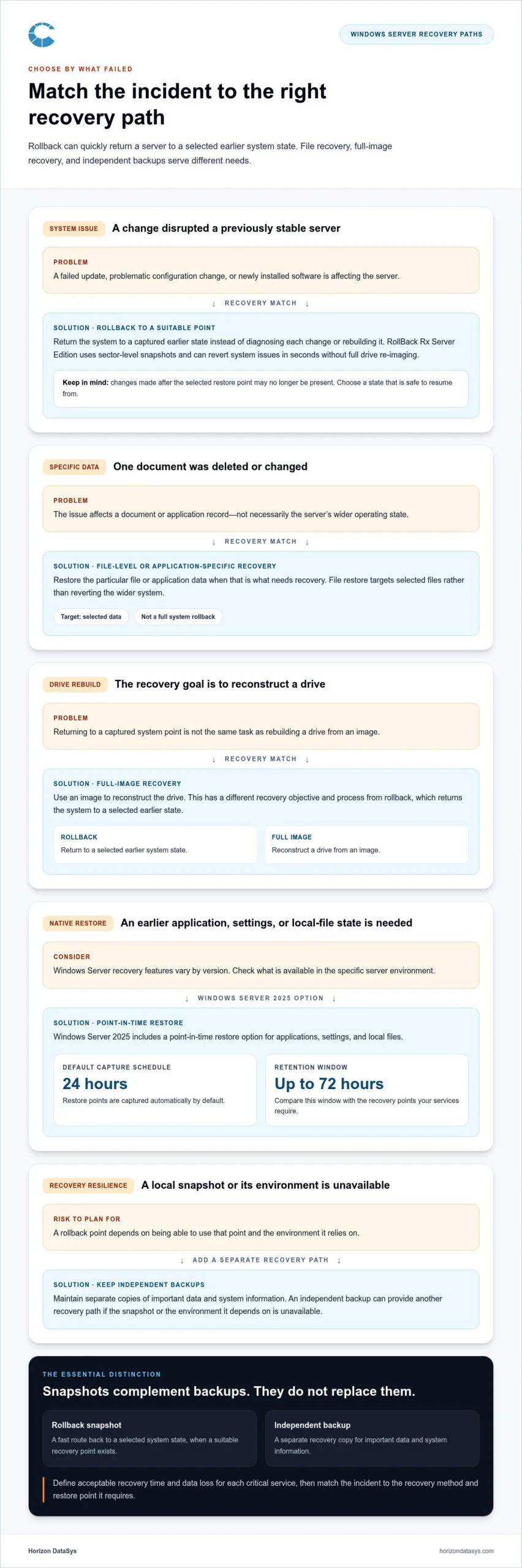
Consider a failed update, a problematic configuration change, or newly installed software that disrupts a previously stable server. Returning the system to a known earlier state may be more direct than diagnosing each change or rebuilding the machine. These are useful scenarios to include in recovery planning, though no rollback method resolves every cause of server failure.
First identify what needs recovery. A system-level issue may call for restoring the server’s operating state; a deleted document or changed application record may require file-level or application-specific recovery instead. These needs aren’t interchangeable. Map each incident to the appropriate method rather than assuming one rollback covers all data and services.
What does instant restoration mean in practice?
Reinstallation or full re-imaging reconstructs the server from installation media or an image, followed by the work needed to return it to service. Rollback instead selects an earlier captured state and reverts the system to it. The familiar desktop System Restore (Windows) is useful background, but don’t assume it is present or behaves the same way on a server. Windows Server recovery options vary, so evaluate the features available in the specific environment.
A rollback restores the selected state, not necessarily every change made afterward. If the restore point predates a configuration update, for example, later changes may no longer be present after returning to that point. Consider which state is safe to resume from and what work or data has changed since it was captured.
In practical terms, instant rollback is a way to return a system to a selected earlier state quickly, when a suitable recovery point exists, not a guarantee against downtime or data loss. Define recovery time and recovery point objectives in advance to determine when rollback is appropriate and when another recovery approach is needed.
How Windows Server rollback snapshots enable faster system recovery
A rollback snapshot records a system state and gives an administrator a point to return to if a later change causes trouble. Sector-level snapshots capture that state at the storage-sector level rather than treating it only as a collection of selected files. RollBack Rx Server Edition uses sector-level snapshots, operates below Windows, and can revert system issues in seconds without full drive re-imaging.
How sector-level snapshots differ from full-image recovery
The key difference is the recovery objective. Rollback returns the system to a selected earlier state; full-image recovery rebuilds a drive from an image. File restore targets specific files rather than reverting the wider system. After a failed software change, an administrator may want to restore system state. After accidentally deleting one document, restoring that file may be the more suitable response.
These approaches involve different recovery steps, so “snapshot” shouldn’t be treated as another name for “backup.” A snapshot provides a rollback point, while an image is used to reconstruct a drive and file-level recovery replaces selected data. For more on the underlying concept, see this sector-level snapshot software guide.
Where native restore points and backups fit
Windows recovery capabilities depend on the server version. Windows Server 2025 includes point-in-time restore, which can return applications, settings, and local files to an earlier state. Its restore points are captured automatically by default every 24 hours and stored for up to 72 hours, according to the current feature details. Compare Windows restore point software and recovery methods with the recovery points your services require.
A separate backup strategy serves another purpose: maintaining copies of important data and system information for recovery beyond a local rollback mechanism. If the snapshot or the environment it depends on is unavailable, an independent backup can provide another recovery path. Ready.gov’s guidance on IT Disaster Recovery Planning reinforces the value of planning for data backup and restoration as part of recovery readiness.
A rollback snapshot is a fast route back to a selected system state; it complements, but does not replace, independent backups. Match the rollback point to the incident, and retain separate recovery copies for broader data protection. Administrators can explore RollBack Rx Server Edition as part of their server recovery planning.
Compare Windows Server instant restore options before choosing
No single recovery method fits every server. The right choice depends on what needs to be restored, which recovery points are available, and how much operational work is acceptable during an incident. Use this comparison to assess instant system restore windows server options against each server’s role and recovery requirements.
| Approach | Typical recovery scope | Recovery point and operational steps | Separate backup copies |
|---|---|---|---|
| Rollback snapshot | Returns the system to a selected earlier state. | Requires a suitable snapshot; select the point that matches the incident and perform the rollback. | Does not replace independent backups. |
| Native Windows recovery options | Depends on the Windows Server version and available feature. | Uses the restore points or recovery capabilities available in that environment. | Use separate backups for additional recovery needs. |
| Full-image backup | Rebuilds a drive or system from a captured image. | Requires an appropriate image and the steps to restore it to the server. | The image is a backup copy, but additional copies may be needed for broader resilience. |
Rollback snapshots versus image backups
A snapshot-based rollback returns a system to a selected earlier state, which can help when a change has disrupted normal operation. An image backup serves a different purpose: restoring a server from a full image. Recovery time and steps depend on the environment and available recovery point, so neither method should be assumed to resolve every failure. A separately maintained backup copy can also provide a recovery path beyond a local rollback mechanism. For broader decision criteria, see this Windows system rollback buying guide.
Rollback software versus reboot-to-restore tools
Reboot-to-restore tools are designed to undo session changes after a restart, a workflow often suited to shared systems that should return to a baseline. Server rollback involves selecting a prior snapshot to address a system issue. The distinction is the recovery trigger and goal: reset after a session, or return to a chosen recovery point. Learn more in this reboot-to-restore software overview.
Use the comparison as a starting point, then match each approach to the service’s recovery objectives and operational risks. A clear plan may use rollback for selected system changes while retaining independent backups for broader restoration needs.
Evaluate Windows Server instant restore against your recovery requirements
Choose a recovery method by starting with the services the server supports, not with a product feature. A practical instant system restore windows server plan connects each priority service to an acceptable outage, a tolerable amount of data loss, and a recovery point that can meet those limits. Include the applications and dependencies involved: a server that boots successfully may still need checks before its services are ready.
Build a server recovery requirements checklist
Work through these steps with service owners and the administrators responsible for recovery:
- Map the server’s role. Record the applications, dependent services, and other systems that must be available, then identify which should return first.
- Set recovery objectives. Agree how long each service can be unavailable and how much recent data or work can be lost. These limits help determine whether rollback, native recovery, or a separate backup restore is appropriate.
- Match incidents to recovery points. For a failed update or configuration change, identify a suitable state from before the change. For missing or altered application data, determine whether file-level or application-specific recovery is needed instead. Record where independent backups are held and which recovery point applies to each scenario.
- Plan operational requirements. Consider application consistency, maintenance windows, and who can access the server and recovery controls. Document any application checks needed after restoration, along with escalation contacts and decision-making responsibilities.
Validate rollback and backup procedures before an incident
A written procedure is useful only if the team can follow it. Test the documented rollback workflow in an appropriate, controlled environment, and confirm that administrators can access the required systems and carry out their assigned steps. After restoration, verify that applications and dependent services behave as expected. Record the elapsed recovery time, access issues, and any gaps the test reveals.
Test backup restoration separately. A successful rollback test doesn’t establish that an independent backup can be restored, just as a backup test doesn’t prove that a rollback workflow meets the server’s recovery objectives. Keep procedures and responsibilities current, especially when the server role, application dependencies, or maintenance practices change.
Use the test results to refine recovery points and clarify who authorizes each action. To assess a snapshot-based option against your plan, explore RollBack Rx Server Edition.
When RollBack Rx Server Edition fits an instant Windows Server restore plan
Once recovery objectives are clear, assess whether snapshot-based rollback fills a specific gap in your plan. RollBack Rx Server Edition provides rapid system rollback for Windows Server environments, particularly when returning to an earlier system state may be more practical than rebuilding from a full drive image.
What RollBack Rx Server Edition is designed to provide
RollBack Rx Server Edition captures sector-level snapshots and operates below the Windows operating system. It enables rollback to a selected earlier state without full drive re-imaging and can revert system issues in seconds. These capabilities make it relevant to an instant system restore windows server plan. As with any recovery method, match the restore point and workflow to the incident and the server environment.
Use current product documentation to map compatibility, configuration requirements, and restore scenarios to your environment. Then determine whether the available snapshot points align with the recovery needs identified for the server. This helps ensure that the planned rollback workflow addresses the system states and incidents that matter to your team.
Decide whether server rollback belongs in your recovery stack
Use the recovery checklist from the previous section to make the decision practical. Compare snapshot rollback with the server’s role, required recovery time, acceptable data loss, application checks, and administrator access arrangements. For example, if the plan calls for returning to a known system state after a disruptive change, assess whether a suitable snapshot and documented procedure can meet that objective.
Rollback belongs alongside, not instead of, independent backups and broader disaster recovery procedures. Returning to an earlier state serves a different need from restoring data from a separate backup copy. For organizations running virtual private servers or managed infrastructure with providers such as Snel.com, combining rapid system rollback with separate backup routines ensures layered operational resilience. Document both procedures, assign responsibility for each, and test them independently so the team understands their respective roles and limitations.
Use this short checklist before deciding:
- Does the documented product support your Windows Server version and environment?
- Do the available recovery points match the system states your objectives require?
- Can administrators follow and validate the rollback workflow?
- Are separate backups and disaster recovery steps maintained for other recovery needs?
If those criteria align with your recovery plan, explore RollBack Rx Server Edition as a server rollback option.
Build a Faster, More Resilient Server Recovery Plan
Choosing an instant system restore windows server approach starts with defining what must return, how quickly services need to resume, and which recovery point is acceptable. Rollback snapshots can restore a prior system state without a full drive re-image, while image backups and independent backup copies address different recovery needs. A dependable plan assigns each method a clear role and tests the steps before an incident.
For administrators assessing rapid rollback, RollBack Rx Server Edition uses sector-level snapshots and operates below the Windows operating system. It can revert system issues in seconds without full drive re-imaging, making it an option to evaluate alongside existing backup and disaster recovery procedures.
Match its documented capabilities to your server environment and recovery objectives, then decide whether snapshot-based rollback strengthens your strategy. Explore RollBack Rx Server Edition and take the next step toward a more controlled recovery plan.
Frequently Asked Questions
What is instant system restore for Windows Server?
Instant system restore for Windows Server means returning a server to a previously captured or otherwise available system state without rebuilding the environment from scratch. The process and recovery speed depend on the tool, the failure, and the recovery point available. System rollback differs from restoring individual files or recovering from an independent backup. Identify which kind of recovery each incident requires before selecting a method.
Can Windows Server be restored without a full reimage?
Yes, some recovery approaches can return a server to an earlier state without deploying a full drive image. Snapshot-based rollback is one option, with coverage depending on the product and environment. A full image or independent backup may still be needed for other recovery situations, including cases where the server or its storage can’t use the rollback mechanism. Match the method to the failure and maintain separate recovery copies.
How is a server snapshot different from a backup?
A snapshot records a system state so the server can return to that point, while a backup provides a separate recovery copy for restoring data or systems. Their capabilities and risks depend on how each is implemented. A snapshot shouldn’t automatically be treated as an independent backup. Define the recovery needs each method serves, maintain backup copies suited to those needs, and test restoration procedures so the team understands how each option works.
Does instant system restore replace Windows Server backups?
No. Rollback can return a system to an earlier state, but it shouldn’t be assumed to meet every backup requirement. Separate backups can support other recovery needs and provide another copy of data. Document which failures each method is intended to address, then test the relevant restoration steps. Combining rollback with independently maintained backups gives administrators distinct recovery paths instead of relying on a single mechanism.
Can rollback recover a Windows Server after a failed update?
Rollback may help if an update leaves the server in an unwanted state and the product, configuration, and available recovery point support that scenario. Review documented capabilities and test the procedure safely in an appropriate environment before relying on it. Also account for application data and services, since reverting system state may not meet every recovery need. Keep separate backups for data and situations outside the rollback mechanism’s documented scope.
What should I compare when choosing Windows Server restore software?
When evaluating instant system restore windows server options, compare recovery scope, supported server environments, recovery-point creation, restore workflow, and fit with independent backups. Consider application requirements, administrator access, testing, and the effort needed to operate the process. Define acceptable recovery time and data loss first, then compare product compatibility and limitations with your environment. This keeps selection grounded in operational objectives rather than feature claims alone.
Does RollBack Rx Server Edition require a full drive reimage to roll back?
No. RollBack Rx Server Edition uses sector-level snapshots and operates below the Windows operating system to enable system rollback without full drive re-imaging. Horizon DataSys describes the software as able to revert system issues in seconds. The workflow depends on the product configuration and environment, so use current product documentation to understand technical requirements and plan deployment.