

Rapid OS Recovery Software: Compare Windows Recovery Methods in 2026

What if a Windows endpoint could return to a working state without a full re-image, while backups still protect data and support recovery needs that rollback can’t cover? A failed update or unwanted system change doesn’t always call for rebuilding the entire machine. But backups, restore points, snapshots, and reboot-reset tools solve different problems. The right rapid OS recovery software can shorten routine recovery, but it should be one layer in a broader resilience plan.
This guide explains what rapid OS recovery does and doesn’t do, then compares it with Windows restore options, file and image backups, and full re-imaging. RollBack Rx uses sector-level snapshots for workstation or server rollback, while Reboot Restore returns shared computers to a clean baseline on restart. Use these distinctions to match a recovery method to the incident, endpoint, and operations your IT team already relies on, without leaving other recovery needs uncovered.
Key Takeaways
- Choose rapid os recovery software by matching its workflow to the failure scenarios and downtime your Windows environment can tolerate.
- Compare rollback snapshots, backups, Windows restore points, and re-imaging by what they capture and how they restore system state.
- Set recovery time objectives and acceptable data-loss windows for each workload before comparing tools.
- Use snapshot rollback for system-state recovery needs, while retaining independent backups for broader data protection.
- Match the tool to the endpoint: RollBack Rx supports workstation or server rollback, while Reboot Restore returns shared computers to a clean baseline on restart.
Table of Contents
- What Rapid OS Recovery Software Solves for Windows IT Teams
- How Rapid OS Recovery Methods Differ Under the Hood
- Rapid OS Recovery vs. Backups, Restore Points, and Re-Imaging
- How to Evaluate Rapid OS Recovery Software for Your Environment
- Where Horizon DataSys Fits in a Rapid OS Recovery Strategy
What Rapid OS Recovery Software Solves for Windows IT Teams
A workstation fails after an update, and an employee can’t get back to work. In a classroom or lab, several affected computers can disrupt a scheduled session. On a server, an operating problem can interrupt services that other systems depend on. IT teams need a reliable way to return affected machines to a usable state without treating every incident as a full rebuild.
Rapid OS recovery software restores a Windows system to a usable state with less delay than rebuilding it from scratch. Depending on its design, it may roll back system state to an earlier point instead of reinstalling the operating system and reconstructing the machine component by component.
That purpose is narrower than full data protection or business continuity. System recovery addresses the operating environment; file recovery focuses on retrieving particular files, and data retention preserves information over time. Business continuity is broader still, covering the people, processes, dependencies, and recovery arrangements needed to keep essential work going. Faster system restoration can reduce disruption, but it doesn’t automatically provide broader protection or replace independent backups.
Which disruptions make rapid Windows recovery valuable?
Rollback can help when a Windows machine becomes unreliable after a failed update, an unwanted configuration change, or another system-level change. Returning to a known working state may avoid rebuilding the OS, reinstalling applications, and restoring settings one by one.
The operational impact depends on the endpoint’s role. An unavailable staff workstation can delay routine work; a group of classroom or lab computers can affect a scheduled session; and a server issue can interrupt services that other systems rely on. A consistent recovery approach gives IT teams a repeatable response instead of making every incident a one-off reconstruction project.
Malware requires more care. Rolling back system state may address some unwanted changes, but it shouldn’t be assumed to remove every threat, restore compromised credentials, or recover affected data. Teams need to assess the incident and use appropriate security response and backup processes alongside system recovery.
What does rapid OS recovery mean in practice?
In practice, recovery means returning a system to a usable prior state without rebuilding every component from installation media. The scope and method depend on the product architecture. RollBack Rx, for example, uses sector-level snapshots for system rollback without full drive re-imaging. Other Windows recovery options use different workflows. Windows Recovery Environment (WinRE) provides a built-in environment for troubleshooting and recovery tasks.
To assess an approach, ask what state it can restore, what information may have changed since that state was captured, and whether recovery is possible when Windows is unstable or unavailable. A quick return to a prior system state may restore endpoint usability, but it isn’t the same as retrieving a deleted document or maintaining access to a business service during an outage.
How Rapid OS Recovery Methods Differ Under the Hood
Recovery methods can look similar because each aims to make a system usable again. Their mechanics differ: what they capture, when they restore it, and where recovery operates all affect the incidents they can address. A point-in-time rollback returns a system to a selected earlier state; a full system image provides a broader copy that can be restored to rebuild a machine.
Snapshots and system rollback
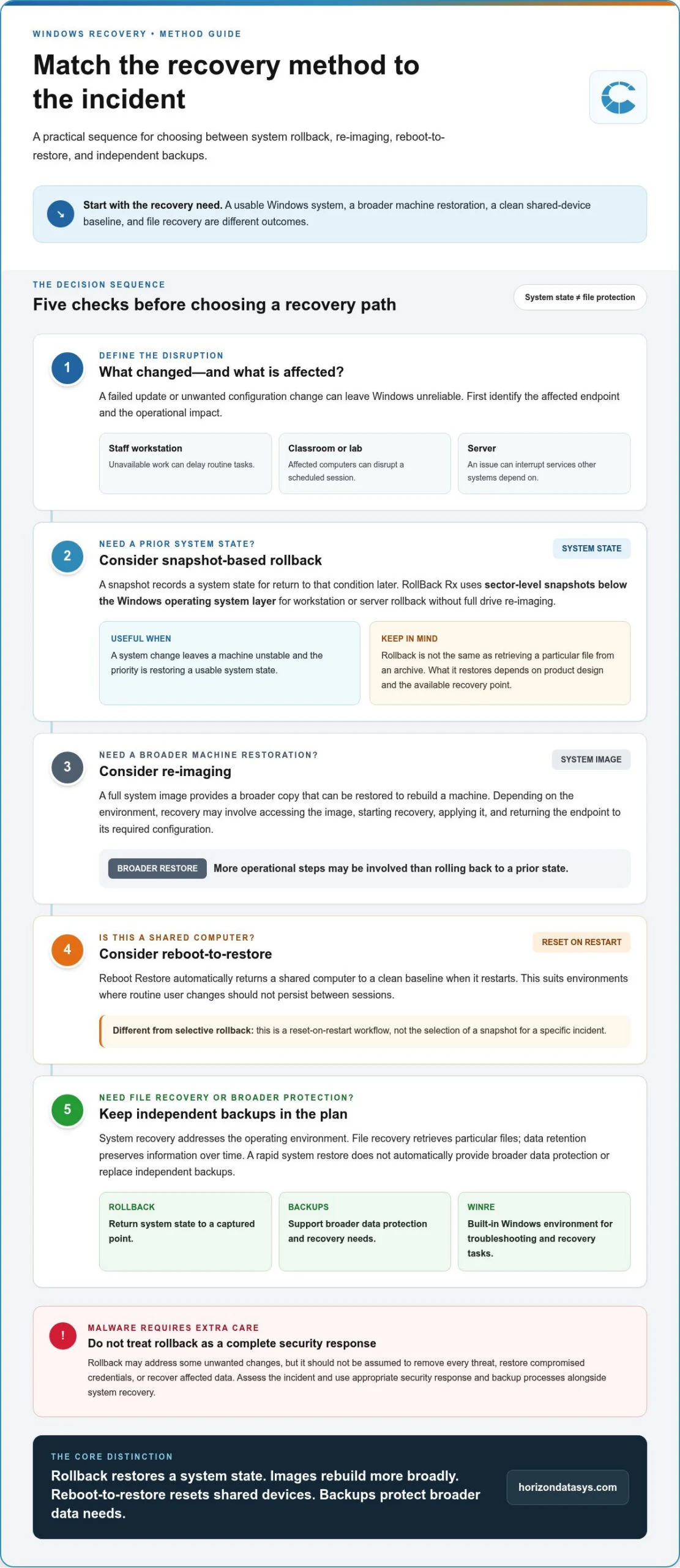
A snapshot records a system state so the machine can return to that condition later. RollBack Rx uses sector-level snapshots below the Windows operating system layer, enabling rollback without full drive re-imaging. This can help when a system change leaves a workstation or server unstable and the priority is to return its system state to a usable point.
Rollback isn’t the same as retrieving a particular file from an archive. Its scope is the captured system state, and what it can restore depends on the product’s design and the available recovery point. For more on the mechanics, see this guide to sector-level snapshot architecture.
Re-imaging and reboot-to-restore
Re-imaging restores or rebuilds a machine from a broader system image. Depending on the environment, the process may involve accessing the image, starting recovery, applying the image, and returning the endpoint to its required configuration. It can restore a wider system foundation, but may involve more operational steps than rolling back to a prior state.
Reboot-to-restore serves a different purpose. Instead of selecting a snapshot to recover from a specific incident, Reboot Restore automatically returns a shared computer to a clean baseline when it restarts. This suits environments such as shared workstations, where routine user changes shouldn’t persist between sessions. It’s a reset-on-restart workflow, not selective snapshot rollback. A separate reboot-to-restore software guide explains how that approach works.
These methods meet different operational needs. A rollback point supports recovery from a system change; an image supports broader machine restoration; and reboot-to-restore maintains a defined baseline on shared devices. Choose based on what needs to be restored, how the endpoint is used, and how much reconstruction the team can accommodate.
Technology is only one layer of recovery planning. The NIST Cybersecurity Framework (CSF) 2.0 places recovery within the broader work of managing cybersecurity risk, reinforcing why restoring an OS shouldn’t be treated as a complete incident response plan. To explore how these recovery layers apply to Windows endpoints, review Horizon DataSys endpoint recovery software.
Rapid OS Recovery vs. Backups, Restore Points, and Re-Imaging
These methods can all contribute to Windows recovery, but they preserve different things and serve different operational needs. Use the comparison below to identify the right layer for a problem instead of treating every option as an interchangeable safety net.
| Method | Purpose and typical scope | Restoration workflow | Role |
|---|---|---|---|
| Rollback snapshots | Return system state to a captured earlier point. | Select a recovery point and roll the system back. | Address disruptive system changes and support rapid endpoint recovery. |
| Backups | Preserve recoverable copies of files, data, or, with image-based backup, a broader system. | Locate a suitable backup and restore the required content or image. | Support data retention and recovery across a wider range of loss scenarios. |
| Windows restore points | Revert selected system files, settings, and other supported system changes to an earlier point. | Use Windows recovery options to choose an available restore point. | Provide a built-in recovery option for some system problems. |
| Full re-imaging | Restore or rebuild a machine from a broader disk or system image. | Apply the image and complete any required setup or configuration work. | Rebuild standardized endpoints or restore a wider system foundation. |
When is rollback different from backup?
Rollback targets system-state restoration; a backup preserves a recoverable copy of data or a system image. A snapshot may return an endpoint to a prior working condition, while a file backup can help retrieve a document that was deleted or changed. Neither covers every hardware failure, data-loss event, or security incident, so plan them as complementary layers.
Backup schedules, retention periods, and restore testing remain separate responsibilities. Verify that backups contain the data you need and that the recovery process works for the intended scenario.
Recovery speed and backup coverage are different measures: a fast rollback can restore system usability without providing the breadth or retention of an independent backup.
When do restore points or re-imaging make sense?
Windows restore points offer a built-in way to reverse certain system changes when a suitable point is available, but their scope and workflow differ from dedicated snapshot rollback or a full image restore. Re-imaging can be appropriate when IT needs to rebuild standardized systems or restore a broader machine image, even if the process involves more preparation and follow-up configuration.
To evaluate Windows rollback options against your environment’s requirements, use this Windows system rollback buying guide. It can help clarify where rapid os recovery software fits alongside restore points and backup processes, rather than treating any one method as a complete replacement for the others.
How to Evaluate Rapid OS Recovery Software for Your Environment
Start with the failure you need to handle, not a feature checklist. The right recovery layer depends on the endpoint’s role, the disruption it must withstand, and how quickly operations need to resume. Use this sequence to compare options against real workloads.
- List recovery scenarios. Identify the events that matter: a failed update on staff workstations, a system change that destabilizes a server, or shared computers that must return to a known state after use. Note which machines and services each scenario affects.
- Set recovery objectives. Define a recovery time objective (RTO), the maximum acceptable time to restore the workload, and an acceptable data-loss window for each system. A shared classroom computer and a server supporting essential operations may have different tolerances. These targets help show whether rollback, backup restoration, re-imaging, or a combination is appropriate.
- Match the workflow to the workload. Shared endpoints that should return to a clean state on restart have a different need from systems that require point-in-time rollback after a disruptive change. Consider who uses each device, how often its configuration changes, and what downtime interrupts. For server-focused criteria, consult this instant system restore for Windows Server guide.
- Assess scale and administration. Consider how many endpoints need protection, how recovery settings will be maintained, and whether centralized administration matters across networked devices. Account for how the recovery layer fits alongside existing endpoint safeguards and backup processes.
- Verify compatibility and test. Check supported Windows versions and hardware requirements against representative devices. In a controlled test, document the recovery sequence, confirm which system state returns, and measure the result against the RTO and data-loss window you set. Test interactions with existing safeguards, too. Product claims can inform evaluation, but they don’t replace testing in your environment.
Validate before broad deployment
Run a pilot that reflects the systems you operate, including differences in endpoint role and configuration. Record who initiates recovery, what decisions are required, and what work remains afterward. If a test misses its target, adjust the recovery design or objective before expanding deployment. This creates a repeatable IT procedure, not just a promising feature list.
Evaluating rapid os recovery software this way helps distinguish tools suited to a specific recovery scenario from those designed for a different operational need. Explore Horizon DataSys recovery solutions to see how rollback and reboot-to-restore approaches fit different Windows environments.
Where Horizon DataSys Fits in a Rapid OS Recovery Strategy
The right recovery layer depends on the system’s role and the disruption IT needs to address. Horizon DataSys offers distinct approaches for point-in-time rollback and automatic baseline restoration. Start with the operating requirement, rather than expecting one tool to cover every endpoint. Neither approach replaces independent backups, which remain important for retaining data and preparing for broader recovery scenarios.
Use documented recovery scenarios to distinguish between a workstation or server that needs to return to a prior system state and a shared computer that should reset after each restart. Consider who relies on the machine, how much its configuration is expected to change, and the consequences of downtime.
When RollBack Rx fits a recovery requirement
RollBack Rx Professional is designed for Windows workstation snapshot rollback, while RollBack Rx Server Edition addresses server recovery needs. Both use sector-level snapshots to support rollback without full drive re-imaging. This fits scenarios where a disruptive system change leaves a machine unstable and the required response is to restore a prior system state.
Keep workstation and server use cases distinct. Deployment requirements may differ, so evaluate each edition against the relevant systems, supported configurations, recovery scope, and operational procedures. Test representative machines and confirm that rollback addresses the failures your team has identified. Rapid os recovery software is most useful when its recovery behavior matches a defined need, rather than being treated as universal protection.
When Reboot Restore fits a shared-computer requirement
For shared computers that should return to a consistent clean baseline, Reboot Restore automatically restores that baseline when a protected computer restarts. This reset-on-restart workflow differs from choosing a point-in-time snapshot for rollback. It fits environments where users make temporary changes during a session, but those changes shouldn’t carry over to the next user.
For network environments, Reboot Restore Enterprise includes centralized management for reboot-to-restore configurations. Consider whether the organization needs consistent baseline behavior across managed shared devices, and account for how automatic resets fit users’ work patterns and existing data-retention procedures.
Keep backup schedules, retention, and restore testing in place for data and scenarios that rollback or baseline restoration may not address. A layered approach gives IT a targeted system-recovery option while preserving separate recovery paths for important information.
Explore Horizon DataSys recovery software to compare the recovery approach with your endpoint or server requirements.
Build Recovery Around the Work That Must Continue
Treat recovery planning as an operational design decision. Identify which systems need a quick return to a prior state, which shared computers should reset between users, and which data requires independent backup and retention. That clarity helps you use rapid os recovery software where it addresses a defined gap while keeping other resilience measures in place.
Horizon DataSys supports distinct recovery workflows for these needs. RollBack Rx uses sector-level snapshots for system rollback, while Reboot Restore automatically returns protected shared computers to a clean baseline on restart. For network environments, Reboot Restore Enterprise adds centralized management. Map these approaches against endpoint roles, recovery objectives, and the existing backup plan, then validate the fit in your environment.
Explore Horizon DataSys recovery solutions and identify a practical next layer for your Windows resilience strategy. Aligning recovery methods with operational needs helps your team move forward with greater confidence and control.
Frequently Asked Questions
Can rapid OS recovery software replace a backup?
No. Rapid OS recovery software and backups address different recovery needs. A rollback may return an endpoint’s system state after a problematic change, while a backup retains copies that can support file retrieval or broader restoration. Restoring a prior system condition, for example, isn’t a substitute for recovering a spreadsheet deleted days earlier. Set retention and recovery targets separately, then test both workflows so staff know which process applies.
How is rapid OS recovery different from a Windows restore point?
They can differ in how they capture system state and how administrators initiate recovery. Windows restore points are a built-in option, while third-party recovery products may use a different architecture and restoration process. Don’t assume restore points are enabled or available in every configuration, or that they protect files like a backup. Compare the recovery scope and supported systems, then test each option against a representative Windows issue.
Can OS recovery software restore a computer after a hardware failure?
Usually, software rollback can’t repair failed physical components and generally depends on a compatible, functioning system. If a drive fails, for example, a snapshot on that drive may not be accessible for restoring the replacement. The next step could involve replacing hardware and using a separate recovery or re-imaging process, depending on available tools and backups. Document that procedure independently and test it on representative equipment.
What happens to files created after a recovery point?
The result depends on the product’s recovery model and the state selected for restoration. A file created after that point may not be present in the restored system state, so users shouldn’t rely on rollback to preserve new work. Protect important files through an appropriate storage and backup policy. Before deployment, test with representative files and confirm how the chosen recovery process handles changes made after a recovery point.
Does rapid OS recovery software work if Windows will not start?
It depends on where the recovery product operates and how its recovery environment is configured. Some methods may be available outside a normal Windows session; others require a different recovery path. Don’t assume every tool can recover an unbootable device. Review its documented requirements and supported configurations, then practice the steps in a controlled test. Include who initiates recovery and what alternate procedure applies if the standard path is unavailable.
How often should IT teams create recovery snapshots?
There’s no universal snapshot schedule. The right cadence depends on how quickly system configurations change, the impact of losing recent changes, operational resources, and the recovery objectives for each workload. First identify when a known-good state is valuable, such as before a planned configuration change. Then document retention expectations and test rollback. Check product-specific scheduling capabilities rather than assuming all snapshot tools create or retain snapshots in the same way.
Is rapid OS recovery software enough to protect against ransomware?
No. Rollback can contribute to endpoint resilience, but it isn’t a complete ransomware defense or incident response plan. The response depends on the incident’s scope, persistence mechanisms, compromised credentials, and affected data. Pair recovery planning with appropriate security controls and independent backups, and follow established incident-response procedures. Before restoring a system, assess whether the threat has been addressed; returning to an earlier state alone shouldn’t be treated as proof that a device is safe.
What is the difference between rapid recovery and a short recovery time objective?
A recovery time objective (RTO) is the target time for restoring a workload; it isn’t a product performance result. Actual recovery can vary with the system, failure scenario, configuration, and steps staff must complete. For example, an endpoint that rolls back successfully may still need checks before users resume work. Set an RTO for each workload, then measure the full recovery procedure in realistic tests rather than assuming a tool meets the target.