
How to Lock Down Public Computers: 2026 Practical Guide

A public computer should be straightforward for visitors to use, yet difficult to leave altered. That balance is the real challenge in how to lock down public computers. Restricting access to settings and software installation matters, but it won’t clear browser data or prevent every session from changing the desktop.
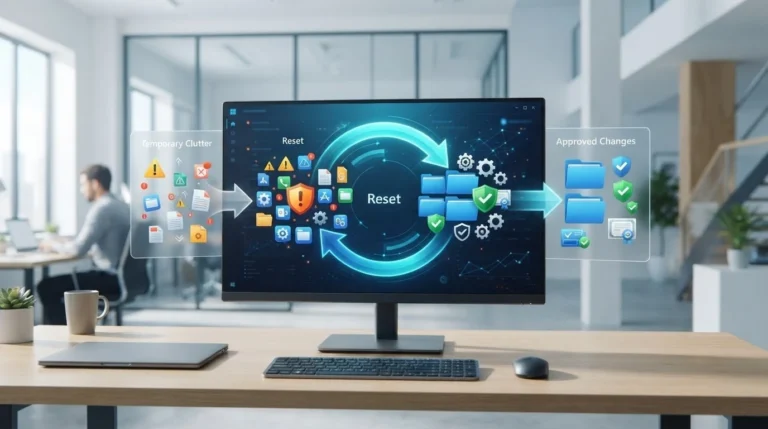
A reliable reset between users can reduce the need for lengthy manual cleanup. The practical approach is to combine controls: define what visitors can access, protect personal information at the end of each session, and maintain a consistent system baseline. No single setting does all three.
This guide covers Windows options for restricting public access, session privacy practices that help limit leftover data, and ways to keep shared computers consistent. It also explains where reboot-to-restore tools such as Reboot Restore Standard and Reboot Restore Enterprise fit. They restore a clean baseline on restart, complementing rather than replacing access restrictions and session cleanup.
Key Takeaways
- Match restrictions to what visitors need to do, from a single-purpose kiosk to a general-use shared computer.
- Use standard accounts and Windows policies to limit access to relevant settings and applications.
- Follow a staged deployment checklist: define the use case, configure a test device, validate behavior, then roll out a documented baseline.
- To understand how to lock down public computers, distinguish access controls from session privacy practices and system restoration. Each addresses a different part of the problem.
- Consider reboot-to-restore as a maintenance layer that returns shared computers to a clean baseline on restart.
Table of Contents
- Why public computers need more than a sign-in screen
- Build layered controls for public Windows computers
- Choose the right lockdown model for each public computer
- How to lock down public computers: a deployment checklist
- Keep public computers consistent after visitors leave
Why public computers need more than a sign-in screen
A sign-in screen identifies who is starting a session. It doesn’t define what that person can change, what information remains afterward, or whether the next visitor gets the same working environment. Locking down a public computer means limiting access to the tasks visitors are meant to complete while preserving the tools and accessibility options those tasks require. The goal isn’t to make a workstation difficult to use. It’s to make its boundaries clear and its behavior predictable.
Lockdown is a layered configuration, not a single Windows setting. User access controls limit permitted actions. Session privacy practices address information left in browsers or applications. Endpoint protection helps defend the device, while system recovery returns it to an approved state after unwanted changes. Each layer addresses a different failure mode, so a sign-in restriction or kiosk setting alone can’t cover them all.
Start with the computer’s public-use purpose
Before changing settings, write down what visitors must be able to do. List permitted applications and websites, along with required peripherals such as a printer, scanner, or accessibility device. A single-purpose kiosk may need to expose just one application. A library or lab workstation may need a browser, document tools, printing, and a wider range of approved tasks. Set restrictions for each device’s actual purpose instead of applying the same narrow profile everywhere.
Include accessibility and support needs in the requirements. Consider whether visitors need on-screen magnification, a screen reader, language input options, or a clear way to request assistance. Test these needs early so a restrictive configuration doesn’t block legitimate use.
Map the risks to the controls
List the ways a session or device could fall outside the intended experience. Some changes are accidental, such as moving desktop icons or altering display settings. Others may be deliberate, including installing unapproved software or trying to reach administrative tools. Browser history, saved credentials, downloads, and open documents can expose information to the next user. Unwanted software or configuration changes can also persist and make the workstation behave differently over time.
Physical access matters because visitors can interact directly with the keyboard, ports, and screen. A device left unattended can also retain an open session. Match each risk to a control: account permissions and Windows policies restrict actions, session procedures address leftover information, endpoint protection supports device security, and recovery tools restore system state. General system hardening principles offer useful context for reducing unnecessary access and exposure.
Turn those choices into outcomes the team can verify. For example, list the applications visitors can launch, test whether they can complete expected tasks, and define what the computer should look like at startup. A clear baseline makes testing more objective and helps staff distinguish a routine support issue from a configuration change that needs attention. These requirements provide the foundation for deciding how to lock down public computers without disrupting their intended use.
Build layered controls for public Windows computers
Once permitted use is clear, configure Windows so visitors can complete those tasks without unnecessary authority over the device. Start with least privilege: visitors use a standard account, while administrative credentials are reserved for authorized staff and kept out of the public session. This reduces the risk that routine use or an attempted change will alter system-wide settings.
Access restrictions limit actions; they don’t reset every system change. A kiosk configuration can narrow what a visitor can open, but session privacy, endpoint security, and recovery need separate safeguards. Treat each as its own layer, and use CISA security configuration guidelines as a reference when shaping device settings and reducing unnecessary exposure.
Restrict accounts, settings, and applications
For a single-purpose terminal, assess Microsoft Assigned Access, which supports a kiosk-style experience. For a shared-use workstation, apply relevant Windows policies to restrict settings and applications while keeping approved tasks available. Choose controls for the workstation’s purpose rather than applying every restriction everywhere. For example, a library visitor who needs to print shouldn’t be blocked from the approved print workflow by a broad application or peripheral restriction.
Test the visitor’s full task flow under the restricted account. Confirm that approved applications launch, required websites work, and accessibility tools remain usable. Keep administrative access separate from the visitor account, and document how authorized staff can make changes without exposing those credentials during a public session.
Protect the boundary between visitor sessions
Give every visitor session a clear end. Establish a sign-out process, then remove session data that could reveal activity or remain available to the next person. Review browser history, downloads, saved credentials, and files in user-accessible locations. Closing a browser doesn’t prove that personal data has been removed. Define what cleanup means for your setup and verify it during testing.
Session hygiene complements ongoing endpoint safeguards but doesn’t replace them. Maintain the operating system and approved applications, use appropriate endpoint security, and limit installed software to what the workstation needs. These measures help protect the device, while sign-out and data cleanup address what one visitor might leave for another.
System recovery addresses a different question: how to return the computer to its intended state after changes persist. Reboot Restore Standard and Reboot Restore Enterprise automatically restore a clean baseline on restart. This recovery layer doesn’t replace account restrictions or session cleanup; it helps maintain consistency after those controls are configured. For networked computers, Reboot Restore Enterprise also provides centralized management. Explore Reboot Restore options for shared Windows computers as part of a broader plan for how to lock down public computers.
Choose the right lockdown model for each public computer
Public workstations don’t all need the same degree of restriction. A visitor check-in terminal has different requirements from a library computer used for browsing, writing, and printing. Choose a model that fits the approved tasks, how often users change, and what information may be stored locally. The aim is to make intended use straightforward while limiting unnecessary access and keeping the device’s state manageable.
Use case
Suitable approach
Key consideration
Single-purpose kiosk
A constrained interface, such as Microsoft Assigned Access, for one application or a narrow task flow.
Keep navigation simple, but confirm the task can be completed without other tools.
General shared workstation
Standard-user access and relevant Windows policies for several approved applications and tasks.
Allow needed flexibility while limiting settings and software outside the approved use.
Either model with persistent local changes
Add system restoration to the access controls.
Set a baseline and establish when a restart should return the device to it.
When kiosk mode or Assigned Access fits
Use a constrained interface when visitors need one application or a clearly bounded workflow, such as completing a form at a self-service station. Fewer choices can make navigation more direct, but the same constraint may frustrate users who need general browsing or additional approved tools. Before a broad deployment, ask representative users to complete the actual tasks and note where permitted steps are blocked or unclear.
When shared-use controls and restoration matter
Workstations supporting several tasks generally need a broader configuration: allow the required applications while using account permissions and Windows policies to restrict unrelated settings or actions. Consider visitor turnover and local data, too. Frequent handoffs or files that may persist between users make session cleanup and a repeatable system baseline especially relevant.
These controls serve different purposes. Kiosk mode narrows the interface, account policies govern what users can access or change, and restoration returns the computer to its configured baseline after restart. Neither a kiosk configuration nor recovery alone provides complete security. Plan session privacy and endpoint safeguards alongside them, then validate the full visitor experience.
For shared computers where local changes shouldn’t accumulate between operating periods, Reboot Restore Standard and Reboot Restore Enterprise automatically restore a clean baseline on restart. Enterprise also provides centralized management for network environments. This recovery layer supports consistency; it doesn’t replace access restrictions or session privacy practices. For a broader comparison of approaches, see this shared computer protection software guide. That framework helps clarify how to lock down public computers according to their actual use, rather than forcing every device into one model.
How to lock down public computers: a deployment checklist
A controlled rollout turns workstation requirements into a configuration staff can test, maintain, and repeat. Avoid changing every public device at once. Start with one representative computer, document what it should do, and verify normal visitor tasks and expected recovery behavior before expanding the configuration.
- Define the use. Record visitor tasks, approved applications and websites, necessary peripherals, accessibility needs, and session-ending expectations. Specify what information may be stored locally and what should be cleared between users.
- Configure a test device. Use a representative workstation rather than a production device holding visitor data. Apply the proposed accounts, Windows policies, kiosk settings where appropriate, security protections, and session procedures. Keep administrative access separate from the public account.
- Apply and document controls. Record approved accounts, applications, settings, and session behavior. Note the configuration owner, how baseline changes are approved, and when maintenance can take place. This gives administrators a reference for consistent setup and troubleshooting.
- Validate ordinary use and misuse cases. Ask a tester to complete each approved task, then check that restricted settings, downloads, and unapproved application launches behave as intended. Use test accounts and sample files, not production visitor information. End the session and confirm that planned cleanup removes the intended user data without disrupting the approved configuration.
- Deploy in a controlled rollout. Extend the tested configuration to the intended devices in stages. Give staff a clear way to report problems, identify who handles configuration changes, and define how an affected workstation is checked and returned to service.
Pilot the configuration before deployment
Test more than whether the restrictions appear active. Confirm that a visitor can complete the full task flow, including approved printing or accessibility functions, and that the end-of-session process works as designed. Try realistic misuse scenarios on the test device, such as attempting to reach blocked settings or install an unapproved application. Record failures and adjust the configuration before rollout.
Document rollout and recovery responsibilities
Write down who owns the baseline and how staff request a change. Include approved recovery steps, maintenance windows, and the process for taking a device out of service if it fails validation. A tested baseline makes recovery repeatable across shared endpoints. For education environments, guidance on school computer lab rollback practices and library public PC restoration offers context for planning consistent shared-device operation.
Where system changes need to be undone, Reboot Restore Standard and Reboot Restore Enterprise automatically restore a clean baseline on restart. For coordinated management across networked computers, Enterprise adds centralized management. Consider Reboot Restore for shared computer baseline recovery as one part of a deployment plan, alongside access controls, session privacy, and validation.
Keep public computers consistent after visitors leave
Access controls determine what visitors can open or change during a session. They don’t necessarily undo every change that remains in the computer’s system state. A restricted account can limit user configuration changes on shared Windows PCs, while an approved download, altered setting, or other persistent change may still affect the next session. A reliable public-computer plan considers both permitted access and how the workstation returns to its intended state.
Reboot-to-restore software adds a system-state maintenance layer. Reboot Restore Standard and Reboot Restore Enterprise automatically restore a clean baseline on restart. This can help shared devices begin public-use periods from a consistent configuration, rather than relying only on staff to identify and manually reverse accumulated changes. It complements, rather than replaces, session cleanup and the controls that govern visitor access.
Make baseline restoration part of operations
Define the approved baseline before relying on restoration. Include the intended Windows configuration, approved applications, and settings visitors need to complete their tasks. Plan when a restart is appropriate in your operating routine, and ensure staff understand which changes belong in the baseline and which are temporary. Returning to baseline on restart supports system consistency; it shouldn’t be treated as proof that personal information has been cleared or that every security concern is resolved.
For details on how the approach works and where it can fit, consult this reboot-to-restore software guide. In a networked environment, Reboot Restore Enterprise provides centralized management, helping administrators coordinate the product across networked computers. The operating model still needs clear responsibility for configuration and routine review.
Review, update, and improve the controls
A baseline is useful only while it reflects the environment’s current needs. Build recurring reviews into workstation maintenance so operating-system updates, approved applications, and policy settings don’t drift unnoticed. After a material change, test the visitor workflow again. Confirm that the computer remains usable for its intended tasks and that access restrictions, session procedures, and restoration behave as planned.
- Review approved software and settings. Compare the device with its documented baseline and address changes through the approved process.
- Re-test visitor tasks. Check that sign-in, permitted applications, required peripherals, accessibility features, and sign-out work after changes.
- Keep safeguards distinct. Maintain endpoint security and updates, follow backup practices appropriate to the environment, and handle session privacy separately from system restoration.
- Record issues and resolutions. Use staff reports to identify recurring configuration problems on shared PCs and refine the baseline deliberately.
These layers work together, but none substitutes for the others. Reboot-to-restore supports a repeatable starting state; it doesn’t replace endpoint security, updates, backups, or practices that protect one visitor’s data from the next. A measured review process keeps controls aligned with actual use and gives IT a clear path for maintaining shared endpoints.
For a broader public-computer strategy, explore Horizon DataSys endpoint recovery solutions as one layer alongside access restrictions, session privacy, and ongoing maintenance. That layered approach is the practical foundation for how to lock down public computers while keeping the visitor experience useful and system state consistent.
Make the next step a manageable one
Start with one public workstation and treat it as a manageable improvement: identify the visitor task it serves, decide what a clean operating state looks like, and use that as the basis for review. This gives your team a practical way to refine how to lock down public computers without committing to one configuration for every setting or location.
Where system changes need to be cleared between public-use periods, Reboot Restore returns shared computers to a clean baseline on restart. For networked environments, Reboot Restore Enterprise adds centralized management. These capabilities can support a broader plan, while access controls, session privacy, updates, and endpoint security remain distinct parts of that plan.
Choose the first workstation, document its intended experience, and validate the approach before extending it. A steady, repeatable process helps IT maintain shared systems without making visitor access unnecessarily complicated.
Explore Horizon DataSys endpoint recovery solutions as you build a practical foundation for consistent public computing. Start with a clear baseline and a measured rollout, then refine the configuration based on how visitors use the workstation.
Frequently Asked Questions
Is Windows kiosk mode enough to secure a public computer?
No. Kiosk mode can constrain what visitors can open, which is useful for a computer dedicated to one task, but it doesn’t cover every security need. You still need to manage user permissions, session data, endpoint protection, and system maintenance. For example, a kiosk may limit application access, while a separate cleanup procedure addresses browser data left behind. Treat kiosk mode as one control in the overall configuration.
Can I lock down a Windows public computer without third-party software?
Yes. Windows includes built-in options such as Assigned Access for a kiosk-style experience, along with account permissions and policies that can restrict user actions. These may be sufficient for a workstation with straightforward requirements. If you need computers to return automatically to a clean system baseline on restart, recovery software such as Reboot Restore Standard or Reboot Restore Enterprise provides that additional layer.
Should public computers use a separate user account?
Yes. Give visitors a standard account distinct from the administrative account used for maintenance. This limits the authority available during ordinary use and keeps administrative credentials out of the public session. For example, staff can manage approved software using a controlled administrator account, while visitors use an account configured for the workstation’s intended tasks. Don’t share administrator credentials with users or leave an administrator session signed in.
What should users be allowed to do on a public computer?
Allow the actions visitors need for the workstation’s stated purpose, and restrict unrelated capabilities. A public catalog terminal might need access to a search application and accessibility tools, while a general-use workstation may also require a browser, document software, and printing. Check the complete task flow before setting restrictions. If visitors can’t perform an approved step, adjust the configuration rather than relying on staff to work around it.
Does reboot-to-restore software replace antivirus or Windows updates?
No. Reboot-to-restore helps return a shared computer to its configured baseline on restart; it isn’t a substitute for endpoint protection or maintaining Windows and approved applications. Keep those safeguards in place and test updates against the workstation’s intended use. Reboot Restore Standard and Reboot Restore Enterprise automatically restore a clean baseline on restart, while Enterprise also provides centralized management for networked environments.
How can a public computer remove one visitor’s personal information before the next session?
Set a defined session-ending routine that signs the visitor out and removes personal information from the browser and other approved applications. Check for saved credentials, browsing history, downloads, and files left in user-accessible locations. Reboot Restore products return shared computers to a clean baseline on restart, but staff should also verify that the session-privacy process covers the data visitors may enter or save during use.