
The best Windows SteadyState alternative may not be the tool that locks a PC down most tightly. The right choice depends on what should happen after each session: restrict user access, restore a clean baseline on restart, or roll the system back to a saved state. If you’re searching for a windows steadystate alternative, start by identifying which recovery behavior your shared computers need.
Shared computers can accumulate unwanted changes quickly, and restoring them by hand after every session adds avoidable work. A replacement should suit the way people use the PCs and the time administrators can dedicate to managing them. This comparison explains how five options control access or restore systems, so you can narrow your choices based on practical requirements rather than a feature checklist alone.
We’ll compare access restrictions, disposable VHDs, Microsoft Unified Write Filter, Deep Freeze, and Horizon DataSys options including Reboot Restore and RollBack Rx. You’ll see where each approach fits, what it means for day-to-day administration, and which Windows requirements to validate before deploying it across endpoints.
Key Takeaways
- Define what users can change and what data must remain available between sessions before comparing tools.
- Separate access controls, restart-time resets, and snapshot rollback. Each protects shared PCs in a different way.
- Compare native Windows controls, disposable VHDs, Deep Freeze, Reboot Restore, and RollBack Rx by operational fit and trade-offs.
- Before deploying a windows steadystate alternative, validate Windows compatibility, retained-data needs, and the administration required across endpoints.
- For shared computers that need a clean baseline on restart, Reboot Restore Standard and Enterprise restore automatically. Enterprise adds centralized management.
What Windows SteadyState Did, and What a Replacement Must Actually Do
A shared PC can serve many people in a single day, each potentially leaving changed settings, downloaded files, or applications in a different state. Administrators need a predictable starting point for the next person. Recreating that condition manually after each session adds work and makes it harder to keep computers consistent.
SteadyState-style protection means maintaining a managed computer configuration across user sessions. The original Windows tool combined controls for shared computers, but choosing a replacement today starts with identifying which jobs those controls performed in your environment. The Windows SteadyState Wikipedia article provides background on the program and its purpose. The practical question is whether you need to limit access, reverse session changes, or do both.
These outcomes are different. Access controls shape what a user can open or change while signed in. Restoration returns the computer to a chosen condition after changes have occurred. A policy that blocks access to a setting doesn’t necessarily undo other changes, while a restore tool doesn’t define which applications or resources users are allowed to access.
Which SteadyState workflows are administrators trying to preserve?
Start with the shared-PC workflow, not the old product’s name. A public-access computer may need a restricted user experience and a clean state for the next visitor. A school lab may need consistent software and settings between classes, while allowing different access for students and staff. A shared workplace computer may need approved applications and a predictable configuration, while still allowing specific work files to persist.
That last requirement needs its own plan. Decide which user-created files should remain, where they should be stored, and how they will be protected. A system reset can remove session changes, so don’t assume files stored on the restored system will persist. Keeping retained user data separate from the computer’s managed baseline helps prevent cleanup from removing work people need.
Access control is not the same as system restoration
Windows tools such as Assigned Access and Group Policy can configure a device’s user experience, restrict available functions, or apply settings. They help shape how people use a PC, but they aren’t equivalent to a mechanism that restores the system after a session. Administrators may use access controls alongside restoration, but one doesn’t automatically provide the other.
Reboot-to-restore returns a computer to a defined baseline when Windows restarts, discarding changes made to the protected system during the session. This suits environments where repeatable starting conditions matter more than keeping each session’s system changes. Other environments may need selected snapshots and the ability to roll back to a chosen point instead.
The right windows steadystate alternative doesn’t have to replicate every old setting. It needs to deliver the recovery behavior your users and administrators require. Define what users may access, what changes should be undone, and what data must persist. Then compare options against those requirements and your Windows environment.
Three Protection Models Behind Today’s Windows SteadyState Alternatives
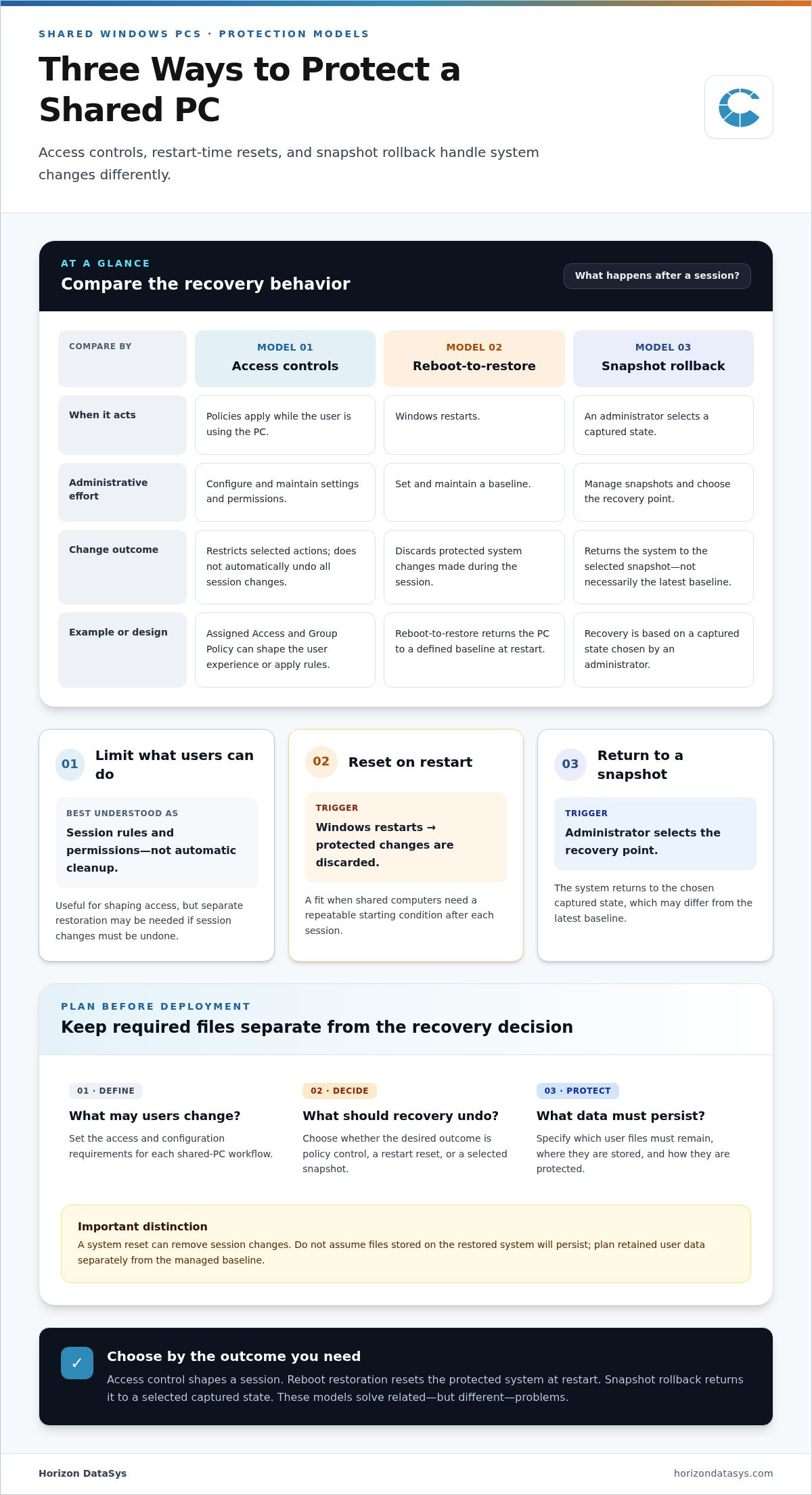
A windows steadystate alternative can protect a shared PC in three distinct ways: limit what users can change, discard session changes when the computer restarts, or roll the system back to a selected snapshot. These approaches address related needs, but they don’t produce the same result. Decide what should happen to the computer after a user finishes.
Access controls shape the user’s session. Reboot restoration removes protected system changes at restart. Snapshot rollback gives an administrator a captured state to return to. Each model handles retained changes differently, so plan separately for files that must remain available and maintain independent backups for data recovery.
| Protection model | Recovery trigger | Administrative effort | Change-retention consideration |
|---|---|---|---|
| Access controls | Policies apply during use | Configure and maintain settings and permissions | Restricts selected actions, but doesn’t automatically undo all session changes |
| Reboot-to-restore | Windows restarts | Set and maintain a baseline | Protected system changes are discarded; required user files need separate planning |
| Snapshot rollback | An administrator selects a captured state | Manage snapshots and choose the recovery point | Returns the system to the selected snapshot, not necessarily the latest baseline |
Native Windows controls and disposable environments
Assigned Access can shape a device for a more restricted user experience, while Group Policy applies configuration and access rules. Neither should be treated as automatic rollback. Controlling what a user can do is different from restoring changes already made.
A boot-VHD design using a differencing disk is another technical approach. The computer can use a managed virtual hard disk as its base while session writes go to a separate differencing disk that an administrator can discard. This design requires deliberate setup and ongoing administration. Confirm current Windows support, prerequisites, and limitations for the deployment before relying on it. Microsoft’s Unified Write Filter is another write-filtering option, available as an optional feature in Windows 10/11 Enterprise, Education, and IoT editions. Check edition and configuration requirements against current Microsoft documentation.
Restore-on-reboot and snapshot rollback
Reboot-to-restore resets protected system changes at restart; snapshot rollback returns the system to a selected captured state. The first model fits a lab or public-use PC that should begin each session from the same baseline. Reboot Restore editions automatically return a computer to a clean baseline on restart, with Enterprise adding centralized management. RollBack Rx editions use sector-level snapshots for rapid system rollback without full drive re-imaging, giving administrators a different recovery option.
Neither approach replaces independent backups or protects every kind of data. If automatic baseline restoration is the priority, explore how Reboot Restore software fits that model, then validate Windows compatibility and product requirements before deployment.
Five Windows SteadyState Alternatives Compared by Use Case
These five approaches differ in what they do with user changes. Some control access, some return a computer to one baseline, and others let administrators select a captured system state. This comparison focuses on operational fit and trade-offs, helping you assess a windows steadystate alternative against what your shared PCs need to do.
| Option | Protection model | Likely fit | Key trade-off |
|---|---|---|---|
| Assigned Access and Group Policy | Access and configuration control | PCs where users need a defined, restricted experience | Policies shape use, but don’t automatically restore system changes |
| Disposable VHD design | Virtual disk and discarded session changes | Teams able to design and administer a tailored environment | Requires technical setup and ongoing management |
| Reboot Restore Standard and Enterprise | Automatic baseline restoration on restart | Shared computers that need a clean starting state between sessions | Enterprise adds centralized management; choose the management model that fits your environment |
| RollBack Rx Professional | Sector-level snapshots and rollback | Administrators who need to return a system to a selected captured state | Recovery involves selecting a snapshot, rather than automatically resetting each session at restart |
| Horizon DataSys Instant Recovery Solutions | Real-time restoration and recovery | Environments requiring immediate system recovery without data loss | Requires careful baseline management to ensure optimal performance |
When native tools or a disposable environment may fit
Assigned Access and Group Policy are sensible starting points when the main requirement is controlling the user experience or applying consistent configuration. They can help limit access, but they aren’t automatic system restoration. If a user makes an allowed change that needs to be undone later, access policy alone may not return the PC to its prior state.
A boot-VHD approach can create an environment where session changes are separated from the base image, but it isn’t a one-click SteadyState substitute. Administrators take on more responsibility for building, testing, and maintaining the design. Windows support, setup prerequisites, and limitations can vary by configuration, so verify current requirements for the target devices before implementation.
When dedicated restore or rollback software fits better
For shared systems that should automatically return to a clean baseline on restart, Reboot Restore Standard and Reboot Restore Enterprise fit the reboot-to-restore model. Enterprise adds centralized management for network environments. Compare deployment and administration needs with your endpoint workflow, and validate current Windows compatibility before rollout.
Choose RollBack Rx Professional when you need a different recovery approach. It uses sector-level snapshots for rapid rollback to a selected system state, without full drive re-imaging. That differs from discarding session changes at every restart. For shared PCs that need automatic baseline restoration, Reboot Restore options are the closer match. For snapshot-based recovery, RollBack Rx offers the distinct model. Neither approach replaces independent backups for files that must be retained.
How to Evaluate a SteadyState Replacement for Shared Windows PCs
A reliable evaluation starts with the user session, not the product shortlist. Before comparing a windows steadystate alternative, define what people need to access, which changes should persist, and how the computer should recover. This helps prevent mismatches, such as deploying access restrictions when the actual need is automatic restoration after every restart.
- Document user access and retained data. List the applications, settings, network resources, and files each type of user needs. Identify files that must remain between sessions and decide where they will live independently of a restored system baseline.
- Choose what should happen to system changes. Should policies block changes in the first place, should a restart discard protected changes, or should an administrator be able to recover a selected snapshot? These behaviors solve different problems. Set a clear recovery expectation before evaluating tools.
- Define who can make and approve changes. Identify which administrators can alter the approved configuration, install or update applications, and authorize a rollback. A clear change process reduces the risk of a system being reset before planned updates or configuration work is complete.
- Map the endpoint environment. Record the Windows versions, hardware, network conditions, and endpoint count in scope. Consider whether computers restart on a fixed schedule or remain in use for long periods. For a distributed fleet, determine whether centralized administration is necessary and how exceptions will be handled.
- Plan updates around protection behavior. Test how the selected approach interacts with Windows, application, and configuration updates. Define when updates are applied, how changes become part of the managed baseline, and how administrators confirm that updated PCs return to the expected state after restart or recovery.
- Run a controlled pilot. Choose representative computers, including any with different hardware, user workflows, or network conditions. Test normal sessions, restart routines, update cycles, and recovery procedures. Record administrator effort and confirm that retained data remains available as intended.
Map user sessions, data, and recovery expectations
Describe what a typical session includes. For example, a workstation might need a shared browser and access to company files, while its system configuration stays controlled. Decide whether users may change settings, which files must persist, and whether recovery should happen automatically or require an administrator to choose a snapshot. Use these decisions as acceptance criteria for the pilot.
Validate administration and deployment requirements
Before expanding deployment, verify the selected approach’s current Windows compatibility and product requirements against the endpoint mix. Include restart timing, network availability, and the process for maintaining a baseline or managing snapshots. A pilot should show not only whether recovery works, but whether update and exception procedures are practical for the team handling daily administration.
For shared computers that need automatic baseline restoration on restart, explore Reboot Restore options, including Enterprise for environments that need centralized management. Expand deployment only after the pilot confirms the desired restore behavior and a manageable operating process.
Choose a SteadyState Alternative That Keeps Your Endpoints Predictable
The best windows steadystate alternative depends on the outcome you need, not on whether a tool resembles the discontinued program. Access controls, reboot restoration, and snapshot rollback address different operational requirements. Match the protection model to how people use the computers, then test that it behaves as intended before expanding deployment.
Match the tool to the outcome you need
Choose access controls when your priority is limiting user actions or shaping the available experience. Choose reboot restoration when shared systems must return to a clean baseline after restart. Consider snapshot rollback when administrators need to recover a system to a selected captured state. These models can complement one another, but they aren’t interchangeable.
Reboot Restore Standard and Reboot Restore Enterprise are designed for shared systems that need automatic baseline restoration on restart. Enterprise adds centralized management for administrators overseeing restoration across networked computers. If you’re evaluating that deployment model, the Reboot Restore Enterprise evaluation guide can help inform your planning.
Plan a controlled evaluation
Before a broad rollout, test the intended workflow on a small group of representative shared PCs. Include differences in hardware, Windows configuration, user access, and network conditions where they exist. Record the initial system state and define what successful restoration looks like, which files must remain, and who can approve changes.
- Choose representative computers. Include endpoints that reflect real usage and configuration differences across the planned deployment.
- Document starting configurations. Record required applications, settings, and access so the approved baseline is clear.
- Run realistic user sessions. Test normal tasks and permitted changes, then confirm which changes should remain or be removed.
- Test restarts and recovery. Confirm the system returns to the expected state after a restart or, for snapshot-based recovery, after an administrator selects a captured state.
- Exercise update workflows. Apply planned application and Windows updates in the controlled test, then verify the intended configuration persists through the normal recovery process.
- Check file retention and administration. Confirm required user files remain accessible and assess whether the team can manage exceptions and routine changes effectively.
Run the pilot through the ordinary restart and update cycle for the environment, rather than judging the result from a single test session. Review issues with users and administrators, adjust the configuration, and repeat the tests before scaling out. Include current Windows compatibility and product requirements for the target endpoints in the evaluation.
Use the results to decide whether the chosen model delivers predictable endpoints without disrupting essential work. A successful evaluation should demonstrate the expected restore behavior, a workable update process, and clear handling for data users need to retain.
Build a Shared-PC Plan You Can Maintain
A dependable endpoint strategy accounts for change, not just the moment a computer is restored. As applications, user needs, and Windows configurations evolve, revisit the approved baseline and the process for updating it. Assign clear ownership for those decisions, and keep test results that show whether the chosen recovery behavior still meets policy.
Before moving beyond a pilot, make sure the people responsible for daily administration can explain what happens after a session, how required files are retained, and how planned changes become part of the managed configuration. That clarity helps keep PCs predictable without creating unnecessary work for users or IT staff.
The right windows steadystate alternative fits your recovery objective and remains practical to operate across your environment. Horizon DataSys provides Windows endpoint resilience software through Reboot Restore and RollBack Rx. Choose the option that matches your shared-PC recovery needs and begin a focused evaluation.
Explore Horizon DataSys restore solutions for Windows endpoints to identify a practical next step for your shared-PC plan.
Frequently Asked Questions
Is Windows SteadyState still available for current Windows computers?
Windows SteadyState is a legacy Microsoft utility, not a current solution administrators should assume is supported for modern Windows deployments. Before reusing an old installer or setup instructions, verify the Windows version they were intended for and the current support status. Choose a practical windows steadystate alternative based on the recovery behavior you need: limiting access, restoring after restart, or recovering a captured system state.
Can Windows Assigned Access restore a computer to its original state after every reboot?
No. Assigned Access configures access to an app or managed user experience; it shouldn’t be treated as a complete system rollback mechanism. Limiting a shared PC to a specific experience doesn’t necessarily reverse system changes after someone uses it. If automatic restoration is required, assess that separately and review current Windows documentation for the configuration options available in your edition and environment.
Can a reboot-to-restore tool keep user files while resetting shared PC settings?
It depends on the product configuration and how user data is stored. Distinguish files that belong to the managed system from work users need to keep, such as a document they’ll continue editing later. Decide where persistent files should reside and who can access them, then test a save, restart, and retrieval cycle. Don’t assume a restored system also provides persistent personal storage.
Do Windows SteadyState alternatives work with Windows 11?
Compatibility depends on the specific method, Windows edition and build, device configuration, and software release. Don’t carry forward a recommendation written for Windows 7 or Windows 10 without validation. Test the exact combination you intend to deploy, including representative hardware and required applications. Record prerequisites or limitations so the deployment plan reflects the actual endpoints, not an assumed compatibility match.
Is reboot-to-restore software a replacement for a Windows backup?
No. Reboot-to-restore software returns a protected system to its configured baseline; it doesn’t automatically create an independent archive or disaster-recovery copy of important files. Keep backup and retention planning separate, especially for business records and user documents that must survive restoration. Define how those files are copied and recovered, and periodically test retrieval so the organization knows the data remains usable if the original device is unavailable.
How should administrators handle Windows updates on computers that reset on restart?
Treat updates as authorized maintenance, not ordinary session changes. For example, apply a planned application update in a controlled maintenance window, verify the application works, then confirm the updated configuration remains after restart. Test this sequence on a pilot device first, including any required user files. The exact process depends on the selected product and deployment design, so document who approves updates and how administrators verify the resulting system state.