
What if a Windows problem makes the usual recovery options unavailable, or rolling back a change still leaves you without a separate copy of important files? That distinction is central to understanding what pc snapshot recovery software can and can’t do.
Snapshots capture a system state at a point in time, giving you a way to roll back after a failed update, software issue, or unwanted change. RollBack Rx, for example, uses lightweight, sector-level snapshots below the Windows operating system layer, allowing rapid system rollback without full drive re-imaging. That speed doesn’t make snapshots a substitute for independent backups: snapshots support system rollback, while backups provide separate copies for other recovery needs.
This article explains what snapshots record and how rollback works, then compares snapshot recovery with Windows restore points and disk-image backups. You’ll learn which option fits different problems and how to combine recovery methods into a practical plan for stronger Windows resilience.
Key Takeaways
- Snapshot recovery captures a system state, but what it includes depends on the software and snapshot architecture.
- Use a clear recovery sequence: capture a state, select the appropriate recovery point, roll back, then verify the system.
- Compare snapshots, Windows restore points, and backups by the failure you need to address. They serve different recovery purposes.
- Evaluate pc snapshot recovery software against your recovery goals, endpoint count, administrator workflow, recovery access, and compatibility requirements.
- RollBack Rx snapshot rollback and Reboot Restore baseline resets serve different roles in a Windows resilience plan.
What Is PC Snapshot Recovery Software, and What Does It Restore?
PC snapshot recovery software captures a system state at a particular point in time so the computer can later be rolled back to that state. Depending on the product and its snapshot architecture, the captured state may include system files, installed software, drivers, settings, or other data. A snapshot is a point-in-time record used to return a system to an earlier state. A conventional backup is a separate copy intended to remain available if the original system or storage becomes inaccessible.
This distinction determines when snapshot recovery is useful. If a driver installation causes instability or a configuration change disrupts normal operation, returning to an earlier state may undo that change. But don’t assume every snapshot product preserves every personal file, or that a snapshot can replace a separate copy of important documents. Before relying on snapshots, identify what the software records and what falls outside its rollback scope.
What information can a PC snapshot preserve?
Snapshots represent a system as it existed at a selected time, but products don’t necessarily capture the same components or use the same method. Some approaches focus on system files and settings; dedicated software may use a different architecture. RollBack Rx, for example, uses lightweight, sector-level snapshots below the Windows operating system layer. It supports system rollback, not cloud storage or a substitute for independent file copies.
Consider a workstation that becomes unreliable after a software update. An earlier snapshot may let an administrator reverse the system change and restore a working configuration. Personal files still need their own protection strategy: a rollback point on the same system is not equivalent to a separate copy that remains available if the computer or its drive fails.
Snapshot recovery software versus Windows System Restore
Windows System Restore is a built-in feature that uses restore points to revert system files, settings, and installed programs to an earlier state. Users can apply a restore point from within Windows or through the Windows Recovery Environment, which is useful when Windows won’t start normally. The System Restore on Wikipedia overview also provides background on the feature and its limitations.
System Restore and dedicated snapshot software address related recovery needs, but they aren’t technically identical. Their capture methods, recovery options, and availability when Windows is impaired can differ. RollBack Rx, for instance, operates below Windows and supports rollback without full drive re-imaging. That describes this product’s architecture, not every snapshot tool. Before relying on a recovery method, identify what it captures, how you apply a recovery point, and whether the recovery path remains usable if Windows can’t load.
How PC Snapshot Recovery Works: Capture, Select, and Roll Back
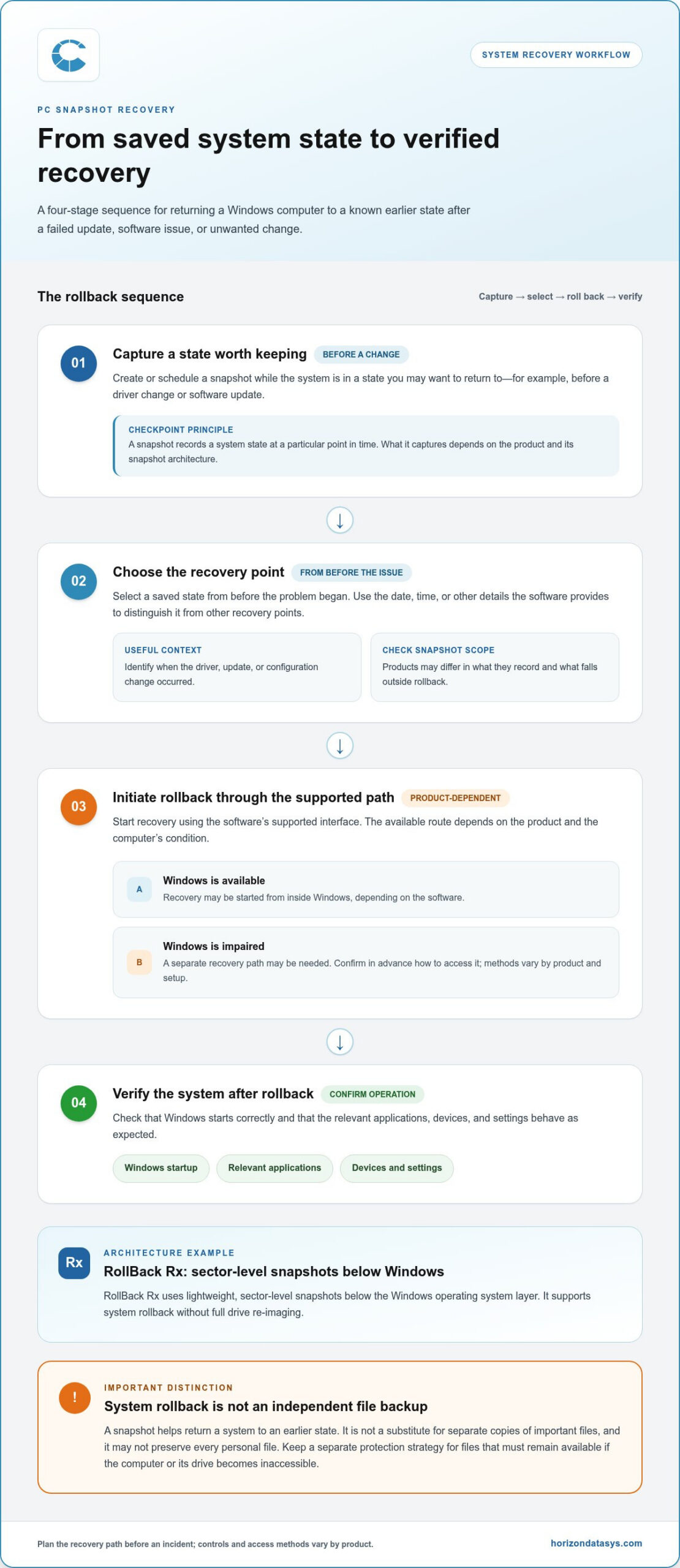
Snapshot recovery follows a straightforward sequence, although the controls and recovery access points differ between products. The aim is to return the computer to a known state, then confirm that it operates as expected. Rollback returns a system to a selected earlier state rather than rebuilding the entire drive from scratch.
- Capture a state. Create or schedule a snapshot when the system is in a state worth preserving, such as before a driver change or software update.
- Identify a recovery point. Select a saved state from before the issue began. Use its date, time, or other details provided by the software to distinguish it from other points.
- Initiate rollback. Start recovery through the product’s supported interface. Depending on the software and the system’s condition, this may happen inside Windows or through a separate recovery path.
- Verify operation. Confirm that Windows starts correctly and that the relevant applications, devices, and settings behave as expected.
This workflow makes pc snapshot recovery software useful for controlled system changes, but recovery isn’t identical across products. Available snapshots, access methods, and required steps can vary by product, configuration, and whether Windows is running normally. Plan the recovery path before an incident so administrators know how to proceed under different conditions.
How sector-level snapshots support system rollback
A sector-level snapshot records the drive’s state at a particular time, including changes at the level of the drive’s sectors. Think of it as a saved checkpoint that gives the system a defined earlier state to return to, although the exact mechanics differ between products. RollBack Rx, from Horizon DataSys, uses lightweight sector-level snapshots below the Windows operating system layer and supports system rollback without full drive re-imaging.
This below-Windows design matters when the normal Windows session isn’t available. It doesn’t mean every snapshot product has the same pre-boot tools or recovery sequence. For an overview of Windows’ built-in alternative, Dell’s guide to using System Restore explains how users work with restore points in Windows.
What happens when Windows cannot start normally?
If Windows won’t load, a recovery method that depends on opening an application in a normal Windows session may be difficult or impossible to use. Determine in advance whether the chosen software provides a recovery route for this situation and how an administrator reaches it. The product’s instructions and setup define the process, so don’t assume the same steps apply across tools.
For System Restore, users can apply restore points from Windows or the Windows Recovery Environment. Dedicated snapshot software may use a different method. RollBack Rx operates below the normal Windows layer and supports rollback outside a standard Windows session. Access steps still depend on the product and system state. When evaluating RollBack Rx snapshot recovery, include recovery access and verification in your endpoint procedures.
Snapshots vs. Restore Points vs. Backups: Choose by Recovery Need
These recovery methods solve related but different problems. A snapshot or restore point can help reverse a system change. A backup or disk image can provide a copy for restoring files or a broader system state. The right choice depends on what failed and whether the original device or storage is still available.
Use the comparison below as a starting point, not a guarantee that every product captures the same data. Snapshot architecture and backup scope vary, so match the method to what you need to recover.
| Method | Purpose | Typical recovery target | Key limitation |
|---|---|---|---|
| Snapshot rollback | Return a system to a selected earlier state | System configuration after a software, driver, or settings problem | Doesn’t replace an independent copy if the device or storage is lost |
| Windows System Restore | Use a Windows restore point to reverse certain system changes | System files, settings, and installed programs | It’s a Windows recovery feature, not a separate copy of all important data |
| File backup | Keep copies of selected files for later recovery | Individual documents and other backed-up files | Doesn’t necessarily restore the full system configuration |
| Disk-image backup | Preserve a broader image of a drive or system | System or drive restoration from an image | Recovery depends on having an available image and a usable restore process |
When is a snapshot the more relevant recovery layer?
Choose snapshot rollback when a problem follows a recent system change and you need to return the workstation to a known earlier state. For example, if a new driver disrupts a device or a configuration change causes errors, rolling back may restore the prior system state without full drive re-imaging. The result depends on the snapshot’s scope, so don’t treat it as a universal fix for malware, hardware failure, or missing personal files. For more detail on the underlying approach, see this sector-level snapshot software guide.
Why snapshots do not replace independent backups
A snapshot supports endpoint rollback, but it may depend on the system or storage it protects. If the device or drive is lost, an on-system snapshot may not provide an accessible copy of the files. A backup stored separately addresses a different need, such as retrieving important data after storage loss. Snapshots and backups protect against overlapping but different risks.
Use pc snapshot recovery software as one layer in a broader plan, not as the only protection for important files. Pair system rollback with file or disk-image backups suited to your data and recovery objectives. This keeps routine system recovery distinct from restoring data after a more extensive failure.
How to Evaluate PC Snapshot Recovery Software for Your Environment
Start with the failure you need to recover from, not a long feature list. System rollback, file recovery, baseline reset, and broader disaster recovery are different objectives, and one method may not cover them all. RollBack Rx uses snapshots for system rollback, while Reboot Restore returns a system to a clean baseline on restart. File recovery and disaster recovery also require appropriate independent copies.
Map your environment before choosing a recovery layer. Identify which Windows devices and workloads matter most, how many endpoints need protection, and what administrators must be able to do during a disruption. Consider how a tool fits existing procedures, including independent backups and verification of recovered systems. For broader planning, the instant disaster recovery guide for Windows can help put endpoint recovery in context.
Questions to answer before adopting snapshot recovery
Define the scope and ownership of recovery. Which Windows systems need rollback, and who is responsible for creating recovery points or initiating a rollback? Set authorization expectations in advance, especially where a recovery action affects shared or business-critical endpoints. Decide how administrators will test the process on representative systems without disrupting normal operations.
- Which devices, applications, and workloads need a known-good recovery state?
- Who creates or manages recovery points, and who can start a rollback?
- How will recovery be tested and verified before wider deployment?
These decisions turn recovery from an abstract capability into a repeatable operational process. They also clarify whether pc snapshot recovery software is the right layer for the incident you’re addressing.
How to assess recovery fit without relying on feature lists
Use realistic incidents to evaluate fit. A failed driver or disruptive configuration change may call for system rollback; deleted documents require file recovery; a public-use computer that should return to a consistent state after restart may need a baseline reset. A lost device or failed drive calls for a broader recovery plan. Match each event to a method rather than expecting one tool to handle every outcome.
Review product documentation for supported Windows environments, recovery access, and administrative requirements. Then test the procedure in a controlled setting: confirm that staff can locate the intended recovery point, initiate the appropriate action, and verify normal system operation. Include backup verification and recovery testing in the same resilience plan, since successful endpoint rollback doesn’t confirm that separate file copies can be restored.
Horizon DataSys’ RollBack Rx software provides a snapshot-based option for system rollback, while its Reboot Restore products use a reboot-to-baseline approach. Explore RollBack Rx recovery software to compare the recovery objective with your endpoint requirements.
Where Horizon DataSys Snapshot Recovery Fits in a Windows Resilience Plan
A resilience plan works best when each recovery layer has a defined job. RollBack Rx Professional is Horizon DataSys software that uses lightweight, sector-level snapshots below the Windows operating system layer. It supports rapid rollback from system issues without full drive re-imaging, making it relevant when the goal is to return a workstation to an earlier system state.
That role differs from restoring files after a drive is lost. Snapshot recovery can help maintain endpoint continuity, but it shouldn’t be treated as protection against every type of data loss or hardware failure. Keep independent backups in the plan and match each tool to the failure it is intended to address.
When RollBack Rx snapshot recovery may fit
Consider RollBack Rx when a Windows workstation needs a return path to a selected earlier state after a system issue. Its sector-level snapshot architecture operates below the Windows layer and supports rollback without full drive re-imaging. This makes it a distinct recovery layer for endpoint stability, alongside backups and other recovery procedures. For additional evaluation context, consult the Windows system rollback software buying guide.
Before adopting pc snapshot recovery software, define which endpoints need rollback capability and how administrators will use it. Include a verification step to confirm that a restored workstation operates normally before it returns to routine use. A recovery point is useful when the process fits the system’s operational requirements.
When reboot-to-restore serves a different purpose
Some environments need a consistent clean state each time a computer restarts, rather than a choice among saved system states. Reboot Restore products return a system to a predefined clean baseline on restart, a useful approach for shared or public-access computers where users make temporary changes. Reboot Restore Enterprise also supports centralized management in network environments.
That automatic reset isn’t interchangeable with user-selected snapshot rollback. RollBack Rx is designed to return a system to a chosen snapshot; Reboot Restore returns it to its baseline at restart. Choose based on the intended workflow: preserve access to earlier system states, or routinely reset endpoints to a clean configuration.
A practical plan assigns each recovery layer a clear task:
- System change or configuration issue: use a rollback method suited to returning the endpoint to an earlier state.
- Shared computer requiring a consistent restart state: use a reboot-to-baseline approach.
- Lost files or unavailable storage: rely on independent backups designed to preserve the required data.
These layers work together. Snapshot rollback supports rapid endpoint recovery, while separate backups address needs snapshots may not cover. Explore RollBack Rx snapshot recovery to see how rollback can fit your Windows resilience plan.
Turn Recovery Priorities Into a Practical Plan
Turn recovery goals into clear operating decisions. Identify which systems need a fast return to a known state, which files require separate protection, and who will validate that a recovered endpoint is ready for use. Document the recovery path and test it under controlled conditions, so staff aren’t making critical decisions for the first time during an outage.
This planning also helps determine where pc snapshot recovery software belongs in your environment. It should support a defined recovery objective and work alongside the other protections your organization relies on, rather than carrying responsibility for every failure scenario. A measured approach gives IT teams a clearer basis for selecting recovery layers and maintaining endpoint continuity.
Explore how Horizon DataSys recovery solutions can support your Windows recovery strategy and help you shape a plan around your operational needs. Explore Horizon DataSys recovery solutions.
With clear roles and tested procedures in place, your team can approach recovery with greater confidence and control.
Frequently Asked Questions
What is PC snapshot recovery software?
PC snapshot recovery software records a computer’s state so it can be selected for recovery if a later change causes problems. Check what the product includes in a snapshot and how it labels recovery points. A timestamp or administrator note, for example, can distinguish a state captured before a planned driver update from one created after routine configuration work.
Is a PC snapshot the same as a backup?
No. A snapshot is primarily a recovery point for returning a system to an earlier state, while a backup is a separate copy of data intended to remain available if the original device or storage is unavailable. If a laptop is lost or its drive fails, a snapshot stored on that same device may not help. Protect important files through an independent backup process.
Can snapshot recovery software restore a PC if Windows will not start?
It depends on the software and its recovery access method. Some products support recovery outside a normal Windows session, while others may rely on tools that are harder to reach if Windows won’t load. Review the product’s instructions before deployment and document how administrators will begin recovery in that situation. Test the recovery method on representative hardware before making it part of an incident procedure.
How is a snapshot different from a Windows restore point?
A Windows restore point is created and applied through the System Restore feature, which is intended to reverse certain changes to Windows system files, settings, and installed programs. Dedicated snapshot software may use a different capture architecture and offer different recovery options. Don’t assume the two methods record identical information. Check what the chosen method covers before relying on it to recover a specific component.
Will snapshot recovery software recover deleted personal files?
Not necessarily. Whether a deleted file can be recovered depends on what the product captured, when the recovery point was made, and how its rollback works. If a user deletes a document after the relevant state was captured, returning to an earlier state might affect more than that one file. For individual file recovery, use a backup or file-history method designed to preserve and retrieve personal documents.
Do snapshots replace full disk-image backups?
No. Snapshots and disk-image backups serve different recovery objectives. A snapshot can support a return to an earlier system state, while a disk image may provide a broader copy for restoring a drive or system. The right option depends on the failure and recovery requirements. Plan how to recover both a misconfigured endpoint and a device whose original storage is no longer usable.
How often should a PC snapshot be created?
There isn’t one schedule that suits every PC. Create a recovery point before a change that could affect system stability, such as a planned driver or configuration update, and consider how often the system changes between planned checkpoints. For managed endpoints, define a consistent policy that reflects operational needs, then verify that recovery points are available and usable. A schedule doesn’t replace separate protection for important files.
Can snapshot recovery software protect against every malware incident?
No. A snapshot can offer a route back to an earlier system state, but it doesn’t guarantee that every malware incident will be resolved or that affected files are safe. The right response depends on what was compromised and whether the recovery point predates the incident. Follow your organization’s security procedures, assess the system before returning it to use, and maintain independent backups for important data.