
What if a clean Windows desktop were a reset policy, not a VDI deployment? On shared computers, user changes can accumulate between maintenance visits, leaving IT teams to restore consistency by hand. The phrase non persistent desktop software windows describes one way to reduce that recurring work, but a reset raises an important question: what happens to users’ files and settings? A clean baseline is useful only when essential data remains available.
This article explains how non-persistent desktops work, why the approach isn’t limited to virtual desktop infrastructure, and when resetting shared Windows PCs can make operations more predictable. You’ll see how Reboot Restore returns a physical computer to a baseline on reboot, and how that differs from VDI, where desktops run as virtual machines. We’ll also cover which environments benefit from resets and what to plan for applications, user data, settings, and administration. With those distinctions clear, you can assess whether a reset-based model fits your environment without treating it as a replacement for backups or other endpoint protections.
Key Takeaways
- Non-persistent desktop software windows describes a way to manage desktop state, not a single deployment architecture.
- Map the baseline, user session, changes, and configured restoration event to understand what will reset and when.
- Choose between persistent and non-persistent setups based on user customization, application needs, and the work required to restore endpoints.
- Plan for user files, settings, exceptions, deployment scope, and administrative ownership before enabling resets.
- Reboot Restore Rx restores shared computers to a clean baseline on restart, while RollBack Rx uses sector-level snapshots for system rollback.
What Does Non-Persistent Desktop Software for Windows Actually Mean?
On a non-persistent Windows desktop, changes made during a user session don’t necessarily remain after the system is reset. The reset returns the computer to a defined state instead of carrying every change forward for the next user. This behavior can be implemented in more than one way, so the phrase non persistent desktop software windows doesn’t automatically mean a virtual desktop hosted in a data center.
Put simply: A non-persistent desktop is one configured to return to an administrator-defined state after a restoration event, whether it runs on physical hardware or as a virtual machine.
Persistent and non-persistent Windows desktops in plain language
A persistent desktop retains user-specific state between sessions. A person may return to the same environment, with their installed applications, preferences, and locally stored work still present. That continuity can suit users whose roles depend on customized tools or a consistent personal workspace.
A non-persistent desktop works differently. The operating system and applications begin from a defined baseline, while changes made during use may be discarded when the configured reset occurs. Think of it as a prepared workspace returned to its standard condition, rather than a personal desk where every adjustment stays in place.
Neither model manages user data automatically. In a persistent setup, teams still need to decide how files and settings are protected and managed. In a non-persistent setup, important files and preferences need a deliberate way to remain available outside the state that resets. Otherwise, a useful change or unsaved work could be lost along with unwanted modifications.
Does non-persistent always mean virtual desktop infrastructure?
No. VDI is one way to deliver non-persistent desktops, often by assigning users a desktop from a pool of virtual machines. At sign-in or another configured point, the user receives a clean environment. Desktop virtualization describes desktop environments delivered through virtualized systems, but persistence is a separate question: it concerns what happens to desktop state between sessions.
Physical Windows computers can also be managed to return to a clean baseline. In this model, software runs on the endpoint and applies a restoration policy to that machine. The computer remains a physical PC; it isn’t a pooled virtual machine simply because its state resets.
The distinction matters operationally. A VDI environment and software-managed physical endpoints differ in where desktops run and how they’re administered, even if both can provide a fresh starting state. Reset tools also differ in their technical methods and triggers. Some are designed around restoration on restart, while others may use different events or mechanisms.
Identify the state-retention behavior first, then consider the delivery architecture. That keeps the discussion focused on the practical question: which changes should remain, and which should be cleared before the next user?
How Non-Persistent Windows Software Handles Session Changes
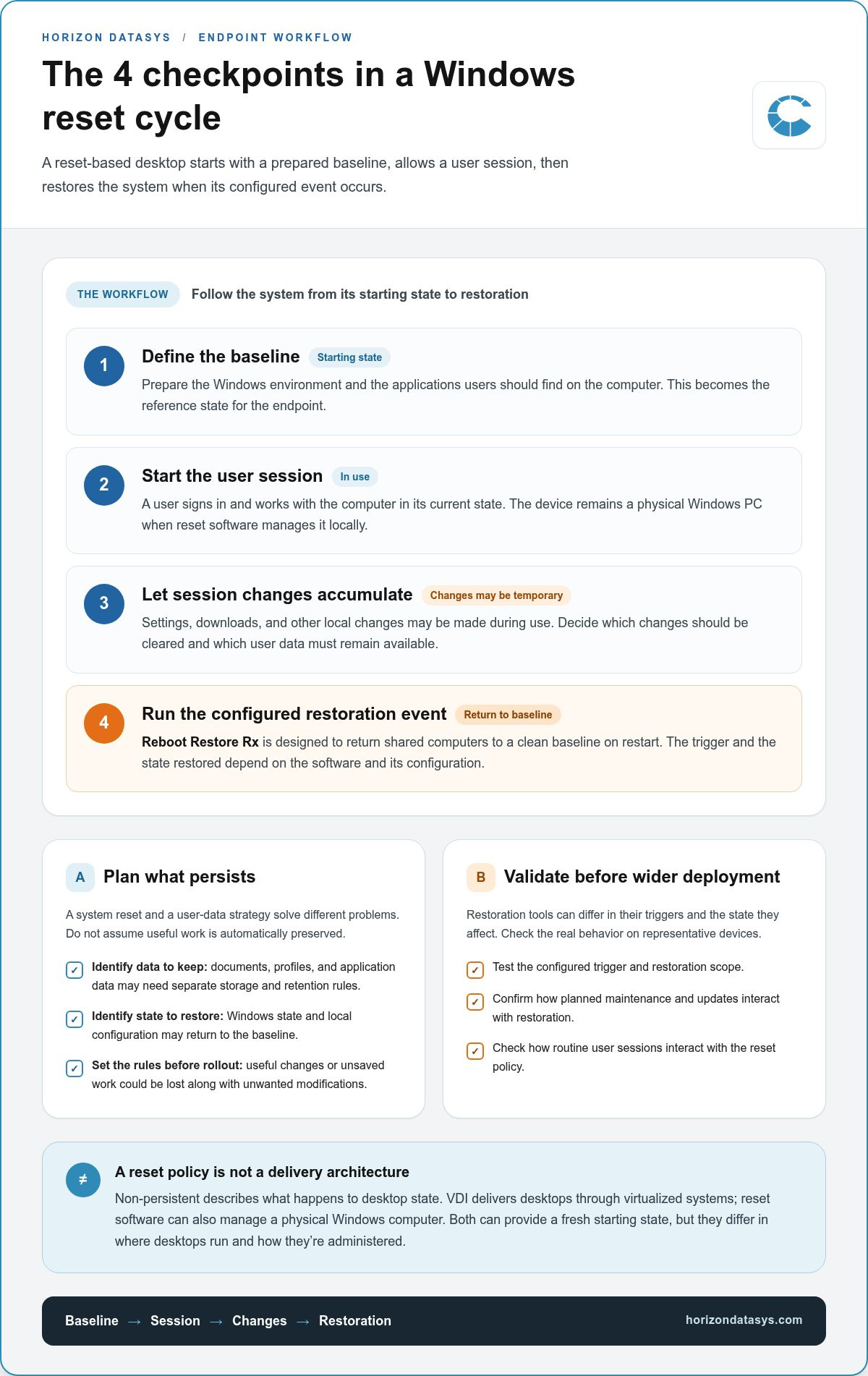
A reset-based workflow has four parts: a defined baseline, a user session, changes made during that session, and a restoration event. On a physical Windows computer, the goal is to keep the endpoint consistent without requiring an administrator to manually undo every local change. The software and its configuration determine when restoration happens and which state it affects. Understanding this sequence is central to evaluating non persistent desktop software windows for shared endpoints.
From baseline to reset: the endpoint lifecycle
Administrators first prepare the intended starting state, including Windows and the applications users need. That baseline becomes the reference point for the endpoint. During a session, users may change settings, install software, or create temporary files. With supported reboot-to-restore software, restarting the computer can return it to the established baseline. Reboot Restore Rx is designed to return shared computers to a clean baseline on restart.
The workflow is easiest to understand in sequence:
- Define the baseline. Prepare the Windows environment and applications the next user should encounter.
- Start the session. A user signs in and works with the computer in its current state.
- Allow changes to accumulate. Settings, downloads, and other local changes may be made during use.
- Run the configured restoration event. When the chosen trigger occurs, the system returns to its baseline according to the software’s behavior and configuration.
This sequence describes the general model, not a promise that every tool resets at the same moment or treats every file identically. A policy may be built around restart, while another product or configuration may use a different restoration mechanism. Test the trigger and scope on representative devices before a broader deployment. Confirm how planned maintenance, updates, and routine user sessions interact with restoration.
What should persist when the desktop resets?
A system reset and a user-data strategy solve different problems. The Windows state and local configuration may be restored, while documents, profiles, or application data may need separate storage and retention rules. Decide which category each item belongs to before rollout, rather than assuming a reset will preserve useful work. This distinction matters when planning non persistent desktop software windows because a clean endpoint doesn’t automatically mean user data is managed.
For example, a browser preference changed during a session may be part of the local state that returns to baseline. A downloaded document stored locally may also be affected, depending on the reset method and configuration. Files saved to an organization-managed location or profile may follow a separate retention process. These examples aren’t guarantees of automatic retention; they show why file location and policy must be clear to users and administrators.
Build the policy around real work patterns: identify where users save documents, which settings need to follow them, and which changes should be temporary. Then test ordinary tasks and edge cases, including a user who leaves a file on the desktop or changes an application preference. For teams assessing reboot-to-restore software for Windows, this distinction helps clarify what a clean baseline can manage and what needs a separate data or profile plan.
Non-Persistent Desktop Software vs. Persistent Windows Setups
Neither desktop model is inherently better. The right choice depends on whether the work benefits more from a stable, repeatable starting point or from user-specific settings that remain in place. Compare the operational trade-offs before applying one policy to every Windows computer.
| Consideration | Non-persistent setup | Persistent setup |
|---|---|---|
| Desktop state | Returns to a defined baseline after a configured restoration event. | Retains user-specific changes between sessions. |
| Customization | Local changes may need to be reapplied or managed separately. | Preferences and local configuration can remain available to the user. |
| Restoration work | Can reduce manual cleanup after routine use, depending on the reset policy. | May require troubleshooting or cleanup as changes accumulate. |
| Application needs | Works best when required applications can be standardized and maintained. | Can suit specialized workflows that rely on durable local configuration. |
| Administration | Requires a clear baseline, reset rules, and a plan for retained data. | Requires ongoing management of user-specific states and changes. |
Decision principle: Match desktop-state persistence to the work: reset shared endpoints when users need a consistent starting point, and preserve state where durable customization is essential.
When a non-persistent model fits shared Windows computers
Public-access PCs, classroom computers, training labs, and other shared endpoints often see frequent changes from different users. A predictable baseline can limit the buildup of settings or local modifications the next person doesn’t need, while reducing the need to restore each computer manually. That makes non-persistent desktop software windows a practical consideration for shared-device environments where consistency matters.
A reset is only one part of the design. Administrators need to establish how required applications stay available and where users should save documents or other data they need later. A well-defined reset policy should make the endpoint predictable without leaving users unsure about what will be retained.
When persistent desktops may better fit the work
Some roles depend on a carefully customized desktop, specialized local settings, or changes that need to remain available across sessions. In those cases, resetting the system can create friction if users must repeatedly rebuild their workspace or reapply configurations. A persistent setup may better support that continuity, provided the organization can manage the state that accumulates.
Frequent user-specific changes don’t automatically rule out a reset-based approach, but they do call for more planning around which settings and data should persist outside the reset state. Keeping a desktop persistent doesn’t remove the need for administration, either. The comparison is about operational fit, not a universal ranking. Reset behavior can help limit the persistence of unwanted local changes, but it isn’t a complete security program or a substitute for other endpoint protections.
How to Evaluate Non-Persistent Software for a Windows Environment
Evaluate the workflow before selecting a reset policy. The right approach depends on who uses each endpoint, which applications must be ready at sign-in, and what information needs to survive a reset. This checklist turns the idea of non persistent desktop software windows into practical decisions for physical PCs.
Assess users, applications, and retained data
Start by grouping devices according to their purpose. A computer assigned to one person may need durable preferences, while a classroom or public-access PC may serve rotating users who benefit from a consistent starting state. Avoid assuming that every endpoint in a department has the same pattern of use.
Next, map required applications and configurations to the baseline. Note which software must be available for a normal work session, which settings are essential, and whether updates or other changes need an administrator’s approval before they become part of the standard setup.
Decide how to handle information separately from the operating system. Identify which documents, user profiles, browser preferences, and application settings must remain available between sessions, and where they should be stored or managed. A reset policy shouldn’t leave users guessing whether a locally saved file or customized setting will remain.
Plan administration, testing, and exceptions
Assign ownership for maintaining the baseline and approving changes. Without a clear owner, routine application updates or configuration adjustments can become inconsistent across devices. Define who tests changes, who approves them, and how the intended baseline is documented.
Pilot the policy on representative Windows devices before applying it broadly. Include ordinary user tasks, application workflows, planned updates, and restarts in the test. Check that the restoration event behaves as expected and that users can access the data and settings the organization intends to retain. A pilot can also uncover differences between device groups before they become wider operational issues.
Document an exception process for legitimate changes that need to persist. For example, an approved application update may need to be incorporated into the baseline rather than treated as a temporary session change. Make the process clear enough that staff know how to request and validate an exception without relying on informal workarounds.
- Endpoint purpose: Identify whether the PC is assigned, shared, classroom-based, or public access.
- User patterns: Record how often users rotate and which customizations they rely on.
- Applications: List required software, configurations, and update responsibilities.
- Retained data: Specify where documents, profiles, and settings should persist.
- Administration: Name the baseline owner and define testing and exception procedures.
For additional selection criteria, consult Shared Computer Protection Software: A 2026 Buying Guide alongside this environment-specific checklist. If reboot-to-restore software fits your shared Windows endpoints, review Horizon DataSys software options as you compare approaches.
Where Horizon DataSys Fits in the Windows Non-Persistent Desktop Landscape
For teams evaluating non persistent desktop software windows, the key is to match the restoration method to the operational need. Horizon DataSys offers distinct approaches: Reboot Restore Rx returns shared computers to a clean baseline on restart, while RollBack Rx uses sector-level snapshots for system rollback. Both support endpoint resilience, but they address different workflows.
Reboot-to-restore software for shared Windows endpoints
Reboot Restore Standard and Reboot Restore Enterprise provide automated reboot-to-restore behavior. On shared computers, this approach returns the endpoint to its established baseline when it restarts, helping provide a consistent starting environment for subsequent use. The policy still needs to account for where important user files and settings belong. A reset shouldn’t be treated as a guarantee that every file is retained or as protection against every threat.
For network environments, Reboot Restore Enterprise includes centralized management tools. These tools let administrators manage reboot-to-restore configurations across networked Windows endpoints instead of treating each computer as an isolated device. When assessing non persistent desktop software windows, consider whether centralized administration is needed, along with plans for baseline maintenance and data handling.
How snapshot rollback differs from reboot-to-restore
RollBack Rx Professional and RollBack Rx Server Edition use sector-level snapshots for system rollback. This approach supports reverting a system after an issue; it isn’t the same as automatically returning a shared desktop to its baseline on each restart. The distinction is practical: reboot-to-restore suits routine resets of shared PCs, while snapshot-based rollback supports recovery to a prior system state when needed.
The administrative focus differs, too. Reboot-to-restore centers on the intended baseline and configured restart behavior. Snapshot rollback centers on system states used to recover from a problem. Neither method replaces backups or endpoint security. Administrators should understand what data and changes each approach affects before putting it into operation.
If you’re comparing these methods, the related explainer Reboot to Restore Software: How It Works and When to Use It can help clarify where baseline restoration fits. For rotating-use computers that need a consistent starting state, consider Reboot Restore; for recovery through snapshots, consider the RollBack Rx approach. Horizon DataSys provides both approaches for different endpoint resilience needs.
Choose a Desktop-State Strategy You Can Operate Confidently
Use your next planning cycle to turn the reset policy into a clear endpoint standard: define which devices should return to a baseline, identify how users will access retained data, and assign ownership for testing and updates. A small, representative pilot can expose workflow issues before you extend a policy across an environment. That gives your team a practical basis for deciding whether non persistent desktop software windows fits the way people use each PC.
Horizon DataSys offers distinct approaches for different operational needs. Reboot Restore Enterprise includes centralized management tools, while RollBack Rx uses sector-level snapshots for system rollback. Keeping the intended outcome in view helps you assess which approach aligns with your endpoint plan.
Explore Horizon DataSys endpoint recovery software to identify an approach for a more consistent, manageable Windows environment.
Frequently Asked Questions
Can non-persistent desktop software run on physical Windows PCs without VDI?
Yes. Non-persistent desktop software windows can manage restoration on physical PCs; VDI is one way to deliver desktops, not a requirement for reset behavior. For example, an organization could apply a reset policy to library computers while keeping them as local machines. Before deployment, map which devices share a baseline, who maintains it, and how staff will test changes, since the workflow depends on the software and its configuration.
Does non-persistent desktop software replace antivirus or endpoint security?
No. A reset policy doesn’t provide the continuous detection and response functions of endpoint security tools. Treat restoration as one operational control, not a guarantee against malware or compromise. For example, define who reviews security alerts, how access is restricted, and what staff do if a device appears compromised. Those procedures remain relevant even if a computer is scheduled to return to a known state after use.
How are Windows updates handled on a non-persistent desktop?
Updates that must remain should be incorporated into the approved desktop baseline. A practical process is to prepare a test device, apply Windows and application updates, restart it under the intended policy, then confirm the updates and key workflows still work. Once validated, promote the revised baseline through the organization’s change process. This helps prevent routine resets from undoing required maintenance on deployed computers.
What happens to files saved locally during a non-persistent Windows session?
Local files may be removed when a system returns to its configured baseline, so users shouldn’t treat the desktop or Downloads folder as lasting storage. For example, an organization can direct users to save work in an approved shared location and explain that local downloads are temporary. Before rollout, test common save paths and give users clear instructions about where to store files they’ll need after restarting.
Is non-persistent desktop software suitable for a single-user Windows PC?
It can be, if returning the device to a known state is more important than keeping every local change. A single-user training PC, for example, may need a repeatable setup after each class. Before choosing this model, list the user’s essential settings and applications, then test whether the reset routine disrupts regular work. The number of users alone shouldn’t determine the desktop-state policy.
Does a non-persistent desktop protect against hardware failure?
No. A restoration policy addresses software state, not a failed drive, damaged computer, or unavailable device. Keep a separate plan for important data, including where copies are stored and how recovery would be tested. For instance, identify the files needed to resume work on a replacement PC and verify that they can be retrieved. Treat endpoint reset, data backup, and hardware recovery as distinct parts of continuity planning.