
A stopped endpoint agent shouldn’t automatically become a manual ticket. Automatic endpoint repair can detect when an agent stops reporting or its profile becomes corrupted, run a defined repair or reinstall workflow, and verify whether the issue is resolved. This turns repeatable fixes into a controlled process instead of a recurring interruption for IT staff.
Automation should reduce hands-on work without sacrificing visibility or control. Useful workflows handle suitable routine issues, record each action, and route exceptions to an administrator for review.
This article explains how endpoint repair automation detects agent problems, applies and verifies fixes, and handles offline devices or cases that need human review. It also covers how monitoring, logs, and clear escalation rules keep repairs accountable while reducing repetitive work.
Key Takeaways
- Set administrator-defined rules so routine endpoint issues trigger consistent, repeatable workflows.
- Use automated repair for suitable agent problems, then confirm the device is reporting and functioning as expected.
- Build in clear handling for offline devices, failed actions, and issues that need administrator review.
- Review repair logs and recurring incidents to refine triggers and catch workflows that may be correcting the same issue repeatedly.
- Keep higher-risk fixes under human oversight, with escalation paths that preserve IT control.
What are self-healing endpoints?
A self-healing endpoint follows administrator-defined rules to detect a known condition and apply a prescribed response. For example, endpoint management can detect a stopped service, restart it, and check whether it reports healthy afterward. The platform follows an approved process rather than improvising a fix, making routine maintenance more consistent across laptops, desktops, and servers.
Rules define which signal starts a workflow, which devices qualify, and what actions follow. A scheduled workflow might check for software updates during a maintenance window. An event-triggered workflow might respond when a device fails a health check or an agent stops reporting. Administrators can also limit an update to a specific device group, avoiding an immediate rollout across the entire environment.
In the United States, there is no single endpoint-repair sequence for every organization. Applicable compliance requirements depend on the organization’s sector, the data it handles, its contracts, and its internal policies. Administrators should reflect those controls in workflow rules.
To configure automated endpoint remediation, define the issue and intended outcome first, then build and test the workflow in controlled stages:
- Choose a trigger. Use a specific signal, such as a failed update, stopped service, or missed agent check-in.
- Set scope. Select the device group and conditions that determine eligibility, such as operating system or maintenance status.
- Choose a low-risk action. Restart a service or deploy a thoroughly tested update before considering broader changes.
- Add approvals. Require administrator approval for disruptive actions, sensitive systems, or changes outside an established policy.
- Define verification. Check the original signal again and record whether the action restored the expected state.
- Set exception handling. Specify what happens if a device is offline, the action fails, or verification does not pass.
Multistep orchestration connects these decisions in one auditable workflow. A failed update might trigger a diagnostic check, then a retry, followed by an administrator alert if the failure continues. Approval gates prevent higher-impact steps from running automatically, while logs record the trigger, action, and result. Testing with a limited device group can expose policy conflicts before broader deployment.
Self-healing workflows work best for repeatable conditions with a clear success test. If a rule repeatedly corrects the same configuration, an overriding user process or a baseline that needs review may be the cause. Scheduled checks suit predictable maintenance, while event triggers suit issues needing a timely response. In either case, clear limits and visible exceptions keep automation under IT control.
Automated endpoint agent repair
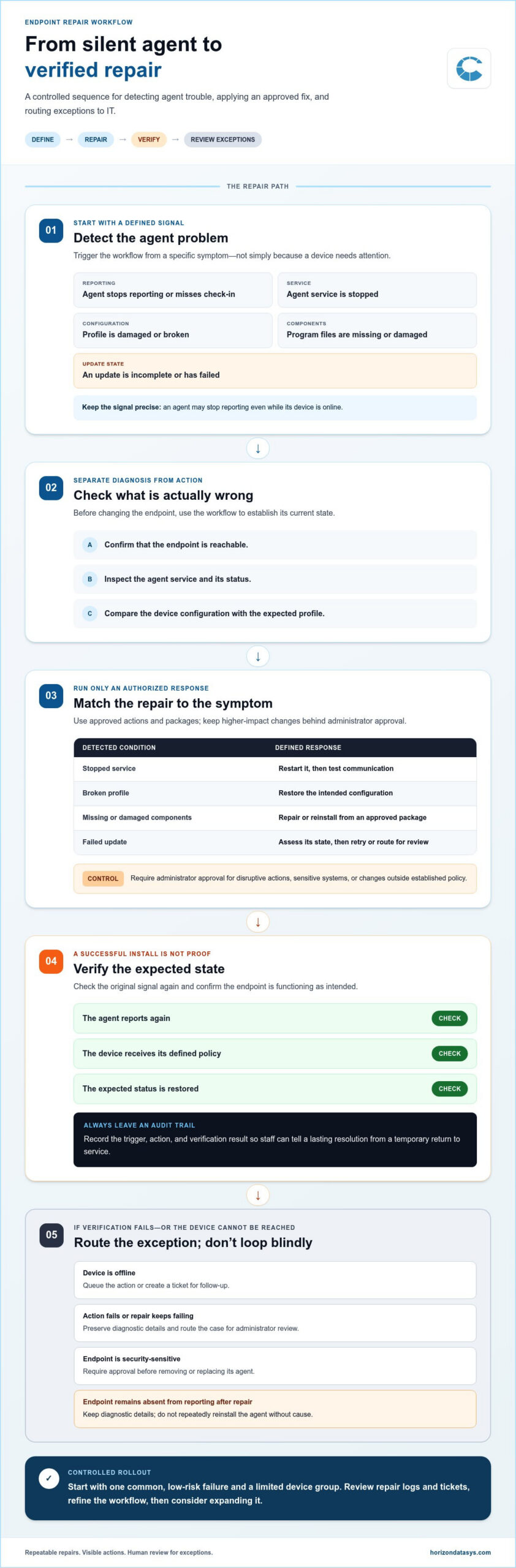
An endpoint agent can stop reporting even when its device is online. A damaged profile, stopped service, incomplete update, or missing program file can interrupt management or security workflows. Automated repair detects a defined symptom and applies an approved response, rather than waiting for someone to notice the device has disappeared from routine monitoring.
A useful workflow separates detection, diagnosis, and action. It can confirm that the endpoint is reachable, inspect the agent service, and compare its configuration with the expected profile. If the service is stopped, a low-risk response might restart it. If required files are missing or the profile is damaged, the workflow might repair or reinstall the agent using an approved package. Define the trigger and permitted actions before deployment.
Endpoint repair and remediation tool prices depend on the case and are provided after a quote request; cost factors include endpoint count, required capabilities, integrations, and licensing terms.
Agent repair can address several repeatable conditions:
- Stopped service: Restart the service, then test whether the agent resumes communication.
- Broken profile: Restore the intended configuration and check that the device applies it.
- Missing or damaged components: Repair or reinstall the agent from an approved software package.
- Failed update: Assess the update state, then retry or route the failure for review.
- Lost reporting: Test connectivity and agent status before classifying the endpoint as repaired.
These workflows can reduce repetitive ticket handling, but a successful installation alone does not prove recovery. A repair should verify that the agent reports again, receives its defined policy, and returns the expected status. If a Microsoft-managed endpoint remains absent from reporting after repair, preserve diagnostic details rather than repeatedly reinstalling the agent without cause.
Exceptions need a separate path. An offline device may require a queued action or a ticket for follow-up, while repeated repair failures can trigger administrator review. Security-sensitive endpoints may need approval before an agent is removed or replaced. Record the initial symptom, action, and verification result so staff can distinguish a lasting resolution from a temporary return to service.
Start with one common, low-risk agent failure and a limited device group. Define the detection signal, authorized repair, verification check, and escalation condition. Review the resulting logs and tickets before expanding the workflow. This staged approach helps IT teams identify edge cases and refine automation while keeping each repair visible.
Automated endpoint remediation is generally used for low-risk fixes, such as installing a thoroughly tested patch or updating an operating system. These actions can run through a defined workflow when their effects are understood and the outcome can be verified.
Keep each repair within its approved scope, and route anything outside that scope for review. This prevents an automated fix from making broader changes than the endpoint issue requires.
Automation controls, verification, and exception handling
Safe remediation depends on limiting what a workflow can change and confirming the device’s state afterward. For example, a rule may restart a stopped service but require manual approval before changing an operating system configuration. This lets routine operations proceed while reserving disruptive actions for an administrator.
The main security risks come from incorrect triggers, excessive permissions, and unverified changes. A faulty rule could apply the wrong configuration or repeat an action that disrupts a device. Reduce that risk by restricting workflow permissions, testing changes on a limited group, and recording every trigger, action, and result.
Verification should test the original condition, not just whether the automation completed. After a repair, scan or monitor the device to check whether the issue has cleared. If a service restart reports success but the endpoint still fails its health check, stop the workflow, preserve its logs, and raise an alert or ticket for intervention.
- Success: Record the repaired state and close or update the related ticket.
- Action failure: Capture the error and route it for administrator review.
- Device offline: Define whether the action queues, skips, retries, or requires intervention.
- Unexpected result: Stop further changes and alert the operations team.
Test offline handling explicitly. Simulate a device that misses its scheduled action, then determine whether the platform queues the task, skips it, retries later, or requests manual intervention. A clear policy prevents an offline endpoint from appearing repaired simply because no error arrived. Integrating ticketing, alerts, and audit trails also gives administrators a traceable record of exceptions.
Review logs for patterns, not just isolated failures. If a configuration is corrected every 48 hours, investigate whether another process is overwriting it or the baseline is too strict. Repeated retries can hide a persistent cause, so define when the workflow stops and escalates instead of looping indefinitely.
There is no useful universal failure rate for every automated repair scenario; track outcomes by workflow, device group, and trigger. Count successful verifications, failed actions, retries, and escalations, then compare results after policy changes. PDQ’s State of Sysadmin report found that 68% of sysadmins worry autonomous tools could break systems in ways they cannot troubleshoot. That concern supports bounded permissions, tested rollback paths, and visible human approval for higher-risk changes.
Automation has practical limits: a device may be unreachable, an operating system may reject an action, or the underlying fault may need diagnosis beyond the workflow. In these cases, exception handling should preserve evidence and hand control to an administrator. The goal is not to automate every repair, but to make safe, repeatable actions dependable and exceptional cases visible.
Customization and human oversight
Automation rules should reflect the different roles and risks of the devices they manage. A shared classroom computer, a finance workstation, and a server do not have identical recovery needs. IT teams can tailor remediation by device group, operating system, business function, and maintenance window. That context helps distinguish a routine software correction from a change that could interrupt critical work.
Use risk and impact to decide which actions run automatically. A tested patch for a known issue may suit proactive deployment, while a newly discovered vulnerability affecting sensitive systems may call for analyst review. Microsoft recommended that organizations deploy security updates within 72 hours. Teams can translate that guidance into a defined workflow, while retaining approval controls for changes that need local assessment.
Effective oversight combines monitoring with clear responsibility. A workflow can identify a failed update, collect device details, and prepare a recommended remediation. An administrator can then decide whether to proceed, schedule a maintenance window, or investigate a possible conflict. For lower-risk tasks, the workflow may apply a tested fix automatically and report the outcome for review.
Set human review points around decisions that automation cannot assess reliably:
- New vulnerabilities: Review the affected software, exposure, and device role before broad remediation.
- Critical endpoints: Require approval when a repair could interrupt essential operations or access to sensitive data.
- Repeated failures: Pause recurring actions and examine the logs for a shared cause, such as a conflicting configuration.
- Unclear detection: Route alerts for review when monitoring cannot distinguish a genuine fault from expected device behavior.
Incident records help make customization more precise. Document the detection signal, decision, repair, and verification result, then use those details to refine the workflow. Reviewing cases across device groups can reveal whether a trigger is too broad, a patch needs further testing, or an exception should become a defined rule. Records also give administrators a clear account of why a change occurred.
Human oversight remains important even as teams expand automation. In PDQ’s State of Sysadmin report, 73% of sysadmins said they want endpoint management mostly or fully automated. That preference supports reducing repetitive work, not removing accountability. Assign an owner to review workflow performance, approve higher-impact changes, and adjust rules as vulnerabilities, software, and operating requirements change.
Start with one well-understood remediation, such as a tested update for a defined device group. Monitor detection accuracy and outcomes, document exceptions, and refine the rule before extending it. This lets IT teams expand automation deliberately while keeping critical decisions visible and under human control.
How does automatic endpoint repair detect and fix device issues?
Repair begins with a signal that a device may be unhealthy. Monitoring tools can detect a failed health check, while patch management systems can flag an update failure. Security scans may identify a vulnerability, and a user help request can report a visible problem. These signals help determine which endpoint needs attention and which response fits.
Detection and discovery answer different questions. Device discovery establishes whether a laptop, mobile device, or server is present. Health monitoring tracks its performance, security posture, and compliance over time. A device can appear in an inventory and still fail a health check, so remediation workflows need relevant status signals, not presence alone.
A typical repair process follows a controlled sequence:
- Identify: Match the alert or failed check to the affected device and issue.
- Assess: Determine the vulnerability’s scope, the device’s role, and whether it handles sensitive or critical data.
- Choose a response: Select a suitable action, such as installing a patch, rolling back an update, removing a bad file, or changing a configuration.
- Apply the fix: Run the approved action on the affected endpoint, or isolate it if containment is needed.
- Verify: Scan or monitor the device again to check whether the original issue has cleared.
- Record the outcome: Preserve the action and result, then escalate unresolved issues for human review.
The right action depends on the problem. A failed patch may call for a retry or rollback, while a bad configuration may need correction. If a security issue calls for containment, remediation can disconnect an endpoint from the network, isolate it in a sandbox, or block external communications. These actions limit exposure while administrators assess what to do next.
Verification closes the loop. A completed command alone does not prove the endpoint has returned to a secure, compliant, and functional state. Check the original signal again, such as whether the device passes its health check after a configuration change. If the issue remains, preserve diagnostic details and route the case for further assessment rather than marking it resolved.
For organizations evaluating recovery options, explore endpoint recovery approaches that help restore device operation after a change or failure.
Endpoint remediation is the broader process of identifying, isolating, and fixing issues on network endpoints, including laptops, mobile devices, and servers. Automation can trigger actions when it detects a vulnerability or a device fails a health check. Detection can therefore prompt a response to an issue on an endpoint, rather than serving only as a status report.
Possible remediation actions include installing patches, rolling back updates, removing bad files, changing device configurations, or restoring a backup. Monitoring tools, patch management systems, security scans, and user help requests can identify issues. Because inputs and fixes vary, automated repair is not one universal command: the response depends on the issue detected. Backup restoration is one option alongside patching, rollback, file removal, and configuration updates. All these actions fit within a process focused on identifying, isolating, and fixing endpoint problems.
Horizon DataSys: RollBack Rx Professional
RollBack Rx Professional can complement automated repair workflows when teams are assessing endpoint recovery. Automation can detect and address defined issues, while recovery software serves a different need: restoring a system after an unwanted change. Consider how each approach fits your endpoint operations and recovery requirements.
For environments evaluating a server-focused option, RollBack Rx Server Edition is also available. The right choice depends on whether you are addressing individual endpoints or server systems, and how recovery fits your existing processes. Neither offering replaces the need to define repair triggers, verify outcomes, and escalate exceptions to IT staff.
To explore which option aligns with your endpoint environment, visit horizondatasys.com.
Make endpoint recovery part of your operating plan
The next step is to distinguish repeatable repair from recovery. Map the endpoint issues that consume the most staff attention, then identify which need a defined automated response and which call for a separate recovery approach. This distinction keeps your operational plan focused on your environment’s needs.
For teams considering recovery software alongside their endpoint processes, Horizon DataSys offers Reboot Restore Enterprise, RollBack Rx Professional, and RollBack Rx Server Edition. These solutions can be considered as part of a broader plan to maintain endpoint stability. The right fit depends on the systems you manage and how recovery supports your operations.
A well-designed automatic endpoint repair process gives IT staff more room to handle complex work without losing visibility or judgment. Start by reviewing recurring endpoint issues and the outcomes your team needs to maintain control.
Contact Horizon DataSys to discuss endpoint repair and explore a practical next step for your environment.
Frequently Asked Questions
How does automation reduce IT workload?
Automation reduces workload by handling repeatable endpoint tasks without requiring an administrator to perform each action manually. For example, routine checks can identify a missing update and trigger a consistent response, while exceptions go to staff for review. This can shift IT effort toward complex tickets, user support, and endpoint policy improvements. The benefit depends on choosing suitable tasks and keeping workflows clear and maintainable.
What does automatic endpoint repair mean in endpoint management?
It means using defined rules to detect an endpoint problem and initiate an approved corrective action. For example, a device that fails a required configuration check could receive a correction, followed by another check. In endpoint management, the key distinction is that the workflow acts on a managed device based on its status, rather than waiting for a user to report every issue.
Which endpoint management platforms offer automatic endpoint repair?
Platforms that support policy-based automation, device health checks, and scripted actions can provide repair workflows. Capabilities vary: some address agent status or configuration drift, while others focus on updates, compliance, or alerts. Assess whether a platform can target device groups, record actions, and handle offline endpoints appropriately. Recovery software is a separate category, designed to restore system state rather than replace endpoint management controls.
How does automatic endpoint repair compare with manual IT support?
Automated repair suits predictable issues with a known, tested response, such as restarting a stopped service. Manual support is better for ambiguous faults, unusual symptoms, or changes with significant operational impact. A practical approach uses automation for routine cases and diagnostic information gathering, then routes unresolved incidents to an administrator. This can reduce repetitive work while preserving human judgment when diagnosis matters.