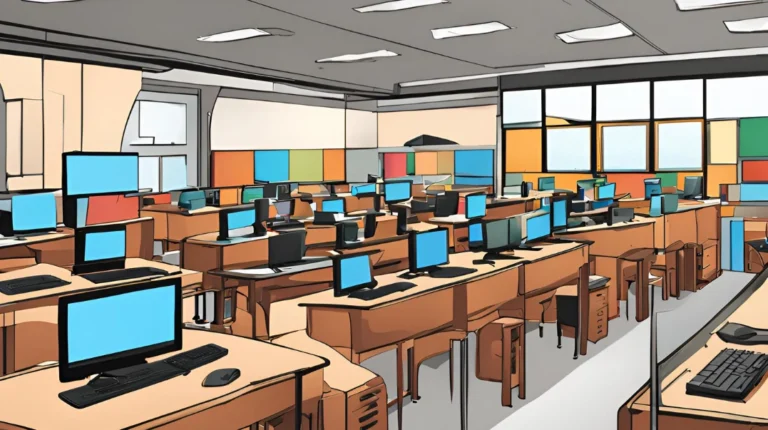

Secure Public Computer Terminals for Safer Shared Use

A computer available to everyone still needs clear boundaries. Secure public computer terminals let people browse, check email, print, and access public information while reducing the risk that one session leaves spyware, keyloggers, or exposed credentials behind. They’re common in libraries, schools, and government facilities, where access needs to be straightforward without compromising system integrity.
It’s understandable to focus on what users can do to protect themselves, such as logging out and avoiding saved passwords. Reliable protection also depends on how computers are configured and reset between sessions. This article explains what public computer terminals are and where they’re used, then outlines practical ways to reduce risks for users and IT teams responsible for shared Windows PCs. You’ll learn how to limit access and stored data, protect credentials, and decide when sensitive tasks are better handled on a personal device. Consistent safeguards help keep shared access useful while making each session more controlled and predictable.
Key Takeaways
- Set shared browsers to avoid retaining passwords, form data, or active sessions, and clear user data between sessions.
- Reduce malware exposure by limiting installation privileges and keeping endpoint protection current.
- Use a personal device and trusted connection for banking or other tasks involving sensitive credentials.
- Understand how keyloggers capture keystrokes, and why shared computers need safeguards beyond user sign-out habits.
- Match computer access and security controls to the needs of libraries, schools, and other public-use settings.
1. What are Public computer terminals?
Public computer terminals are shared computers for tasks such as email, web browsing, social networking, printing, and accessing public information. Libraries, schools, and government facilities use them to provide access to people without personal devices. Because one person’s session follows another’s, secure public computer terminals need browser settings and session cleanup that prevent personal information from carrying over.
In U.S. libraries, CIPA requires filtering software for facilities receiving federal assistance for Internet access. The U.S. Government Publishing Office states that filters block obscene or pornographic images and material harmful to minors. This requirement is not, by itself, a complete privacy program. Browser settings and session procedures matter too, particularly when patrons use email, save files, or enter account details.
Start with the browser’s password and autofill settings. Disable options that save passwords, payment information, addresses, or other form data on a shared PC. The National Cybersecurity Alliance advises against saving these details or keeping login sessions active on shared computers. For example, after a patron signs in to email, the browser shouldn’t offer to remember the password for the next person.
Private browsing can reduce the local traces left by a session. When the private window closes, it deletes browsing history, temporary internet files, and cookies. It doesn’t replace signing out: users should log out of websites explicitly, since closing a tab doesn’t end an account session. A browser plugin may also limit third-party tracking or force HTTPS connections, which encrypt the connection between the browser and a supporting website.
Give users a clear end-of-session routine. Before leaving, they should log out, close browser windows, delete downloaded files, and clear browsing history, cookies, cached files, and saved form data. Each step addresses a different kind of residue: history can reveal visited pages, cookies may preserve session information, and downloads can remain in a shared folder. A private window doesn’t necessarily remove downloaded files.
For IT administrators, automate cleanup where possible. Configure public PCs to purge downloads, saved files, browsing history, cookies, and temporary data at the end of each session. A clean-state reboot can further reduce the chance that one user’s changes remain for the next person. Review browser settings alongside the cleanup process: clearing history alone won’t remove a saved password or an active login session.
Keep user-facing instructions practical. A short sign-in screen can remind patrons not to save credentials and to log out before leaving. Pair that reminder with automated data removal so privacy doesn’t depend entirely on each person remembering every cleanup step.
2. Antivirus, spyware, and keylogging protection
Public computers face a different endpoint challenge from assigned staff PCs. The same Windows workstation may host many browsing sessions, downloads, and application changes. Malware can steal information, disrupt normal use, or compromise privacy. A keylogger records keystrokes and may capture passwords typed into a website. Secure public computer terminals therefore need layered controls to reduce exposure and help administrators detect harmful software.
You can’t reliably identify malware or a keylogger just by looking at a public computer. Unexpected pop-ups, redirects, or unfamiliar behavior can be warning signs, but they don’t confirm an infection. Antivirus scans and monitoring offer a more useful detection approach. Let patrons know how to report suspicious behavior, and ask staff to record the report and contact IT.
Build protection into Windows accounts and software configuration. Public users shouldn’t have administrator rights, which can limit their ability to install software or change system settings. Restrict downloads and installation privileges to reduce the chance of a user accidentally introducing harmful software. Keep antivirus software current and configure it to detect and block spyware and keylogging software.
- Use a restricted public account rather than administrator access for routine sessions.
- Limit software installation and downloads to what the terminal’s intended use requires.
- Keep antivirus protection updated and enabled on each public PC.
Antivirus software scans files and activity for harmful programs. It’s important, but works best as one part of endpoint protection rather than the only safeguard. For example, a locked-down account can limit a visitor’s ability to install an unknown application, while antivirus protection can scan for malicious software. Together, these controls address different points in the risk path.
Make scanning and alerts part of routine administration. Review antivirus status across the public-computer fleet, and address terminals where protection is disabled or out of date. A scan can help detect malware already present; current software and definitions help systems recognize newer threats. Apply updates through the organization’s normal endpoint process, then confirm protection remains active after installation.
Plan for reports as well as automated detection. If a patron reports an unfamiliar prompt or unexpected browser behavior, staff should record which computer was involved and when the issue occurred. IT can then take the workstation out of public use, run a scan, and review its configuration before returning it to service. This prevents a questionable terminal from continuing to serve users while its status is assessed.
For libraries and schools, consistency matters across every shared Windows PC. Apply the same restricted permissions, antivirus settings, and review process to each terminal, then adjust access controls to fit its intended use. This gives administrators a repeatable baseline without assuming that a single scan or warning sign can identify every threat.
3. Managing sensitive tasks on shared computers
A shared Windows PC is useful for public information, printing, and basic browsing, but it’s a poor choice for tasks that expose financial or personal credentials. Users may not know every program or setting that has affected a session. Treat shared PCs as shared workspaces, not trusted devices for private accounts, and set user policies accordingly.
Use signage and user policies to discourage signing in to bank accounts, credit card services, or medical portals on public computers. Advise users not to enter payment card numbers, passwords, or personal identification numbers if they can use a personal device instead. The National Cybersecurity Alliance advises using a cellular connection or waiting for a trusted network before sensitive tasks such as banking. If users need to complete a form, signage can direct them to check whether the organization offers a safer way to submit it later.
Some tasks seem routine but still reveal account access. Email can contain password-reset links, personal messages, or financial notices. User policies can advise anyone who must open an account on a public computer to avoid saving the login, use multifactor authentication when available, and sign out before leaving. The National Cybersecurity Alliance recommends unique, random passwords of at least 16 characters and enabling multifactor authentication for every account. These protections don’t make a shared computer private, but they can strengthen account security.
Set policies to keep downloads and removable storage to a minimum. A downloaded document may remain in a shared folder after the browser closes, and personal USB drives can be exposed to malware on a public PC. If a file is essential, direct users to the organization’s approved process and to remove the local copy when finished. Signage can also advise users not to connect a personal flash drive just for convenience.
- Direct users to personal devices for banking, payment services, and medical accounts.
- Advise users to choose a cellular connection or trusted network for sensitive activity.
- Use signage to discourage entering passwords, card details, or PINs on a shared PC.
- Set policies to minimize downloads and discourage plugging personal USB drives into public computers.
Protect the screen as well as the account. Position terminals so nearby users can’t read the display or watch someone type. The National Cybersecurity Alliance suggests lowering screen brightness, using a privacy screen, or choosing a seat carefully to reduce shoulder surfing. Libraries can offer privacy screens for patrons who want them.
Set user policies and safeguards to support signing out after any necessary account use rather than simply closing the tab. Direct users to close browser windows and delete downloaded files before leaving the terminal. A public computer may retain session details or files unless the user and the device’s cleanup process remove them. Use signage to tell users to stop entering information and alert library staff or the IT team if the screen shows an unexpected login prompt or strange behavior.
4. Keyloggers and credential theft
Public computers can expose patrons to malware, keyloggers, stolen data, and privacy loss. A keylogger records typed keystrokes, which may reveal account names, passwords, or financial credentials. It can be difficult to judge the risk from the screen: a terminal may appear normal even when harmful software is present.
When a terminal may be compromised, advise affected patrons not to use it for sensitive sign-ins, especially for banking, payment, or medical accounts. Remind them not to save credentials or leave accounts signed in. If they accessed an account during the session, advise them to sign out completely and close the session.
A keylogger can capture information as it’s typed, before browser cleanup removes local history or cookies. The distinction matters: clearing browsing data can reduce traces for the next user, but it doesn’t undo credentials already captured. For example, a password entered during a compromised session may need attention even after the browser closes.
There’s no dependable visual test for a keylogger. Slow performance or unexpected prompts can signal a problem, but they don’t prove malware is present. If a patron reports unusual behavior, stop further use of the terminal, end the session, and investigate. Administrators can take it out of service while assessing the issue.
If a patron entered a password on a terminal suspected of compromise, advise them to use a trusted personal device to change it. They can review recent account activity and sign out other active sessions if the service provides that option. If they reuse the same password elsewhere, advise them to change it on those accounts too. Unique credentials limit how far one exposed password can reach.
For administrators, a clear response process helps contain possible credential theft. Record which terminal was reported and when, then prevent further public use while the issue is assessed. Run updated antivirus protection configured to detect spyware and keylogging software. Keep public accounts restricted and limit users’ ability to install applications that could affect later sessions.
Apply these controls consistently across shared Windows PCs. Antivirus protection helps detect harmful software, while restricted permissions reduce opportunities to install it. Neither control replaces a response after suspected exposure. A simple staff procedure should explain how to report and isolate a terminal, and direct affected patrons to secure their accounts from a trusted device.
These layers make secure public computer terminals easier to manage as a system. Patrons can reduce exposure by limiting credential entry, while IT teams maintain endpoint protection and a prompt response process. If a patron reports an issue, treat it as a reason to investigate, not proof of infection.
5. Public computer terminal locations and uses
Public-access computers are commonly found in libraries, schools, and government facilities. People use them to browse the internet, check email, print documents, access public information, or complete online forms. In some rural and suburban communities, a public library may be the only local source of free internet access, making reliable access an important part of daily services.
Are library or hotel computers safer than internet-cafe computers? Location alone doesn’t determine safety; configuration, maintenance, and session controls matter more. A managed library PC can still retain information if it isn’t configured to clear sessions, and any shared terminal needs safeguards suited to its purpose.
Libraries often support a wider range of tasks than a single-purpose kiosk. A patron might search for local services, print a document, or use productivity software such as Microsoft Office. Some libraries also provide computer training or individual assistance. Scheduling can reflect traffic and demand, while some locations allow drop-in use during slower periods.
Schools may provide shared computers for learning activities, research, or access to approved applications. The intended use should guide which programs and websites are available. For example, a PC intended for a specific online learning tool can be configured to allow that application rather than unrestricted access. This makes the terminal easier to manage without treating every shared computer as if it serves the same role.
Government facilities may use public terminals for forms and access to public information. A focused configuration can limit users to the resources they need. Physical placement matters too: a secure enclosure can keep necessary interfaces, such as the keyboard and screen, accessible while restricting access to other parts of the computer.
For IT administrators, start by documenting what each terminal is meant to do. Then align its permitted applications, user permissions, and network access with that purpose. A library browsing PC, a school learning station, and a government form kiosk may need different settings. Restricting network access to required local resources can also reduce unnecessary exposure.
Public Wi-Fi and public computers are related, but they aren’t the same control problem. A terminal connects users to the organization’s device and network environment; Wi-Fi provides a network connection for personal devices, where patrons can encrypt their browsing using solutions like VPN Secure. Clear signage or a start screen can explain access policies, privacy practices, and where users can get help. This guidance helps patrons choose the right device and understand what the terminal is intended to support.
The practical takeaway is to secure each terminal according to its location and purpose, then make those boundaries clear to users. A consistent baseline for shared PCs, adapted to library, school, or government use, supports access without giving every session unnecessary reach.
Horizon DataSys
Horizon DataSys offers RollBack Rx Professional and RollBack Rx Server Edition for organizations managing shared Windows computers. RollBack Rx captures snapshots that let you return a system to a previous state, helping address system issues without full drive re-imaging. For libraries, schools, and public facilities seeking a consistent endpoint environment, these products provide recovery options for desktop and server systems.
Use the safeguards discussed above as your baseline: restricted user access, endpoint protection, and a clear response process for suspected compromise. If you’re considering endpoint management options for shared computers, contact Horizon DataSys to discuss your needs.
Build a Consistent Plan for Shared PCs
As your library, school, or organization reviews its public computer setup, consider how each device should behave after a session and how staff will maintain a consistent environment. Secure public computer terminals depend on more than individual user habits; the endpoint plan should also fit each computer’s role and the organization’s approach to ongoing administration.
For teams managing shared Windows PCs, Horizon DataSys offers Reboot Restore Enterprise, which provides centralized management for reboot-to-restore configurations across network environments. Identify where consistent public workstations fit into your existing setup, then explore Reboot Restore Enterprise as an option for maintaining a clean baseline after restarts.
Contact Horizon DataSys to discuss your shared-computer environment. A clear plan can help your team support public access with greater consistency and confidence.
Frequently Asked Questions
What should administrators consider when providing public computer terminals?
Public computer terminals are computers provided for people who don’t own or bring the device. A library might offer a workstation for research and printing, while a government office may provide one for accessing public information. Set a clear purpose for each terminal and manage access to its applications and network accordingly. These shared devices can support essential services, especially for visitors without another convenient way to get online.
How can administrators secure a public computer terminal?
A secure terminal combines controlled user access with protection against unwanted software and changes. For example, administrators can limit a public account to approved applications, restrict installation privileges, and keep antivirus protection active. They can also separate public-computer network access and configure sessions to return to a clean baseline. The right combination depends on the terminal’s role, whether it supports general browsing, schoolwork, or a specific public service.
How should administrators manage email or banking access on public computers?
Set policies for email and banking access on public computers, and encourage use of a personal device and trusted connection for banking whenever possible. Email also deserves care because an inbox can expose private messages and password-reset links. If your policy allows email access, configure terminals so users aren’t prompted to save logins, and remind them to sign out. For banking or payment activity, recommend waiting until users can access a device and network they trust.
What procedures should administrators follow after a public computer session?
Configure sessions to sign users out, close browser windows, and remove downloaded files before the next person uses the terminal. Check that documents aren’t left open on the screen or in a shared folder. If a terminal displays an unexpected prompt or behaves unusually, take it out of use and note which workstation was involved. Reporting the issue helps the IT team investigate the right computer before another patron encounters the same problem.