Server rollback software: Why and when to roll back

A failed server change doesn’t always call for a rollback. Server rollback software can return a system or application to a previously working state when a recent deployment or update is linked to a problem, but it won’t resolve every underlying issue. The right response depends on what changed and whether reverting it could affect data or other users.
You’ll learn how automated rollbacks work, why backups and stakeholder communication belong in the plan, and how rollback differs from backup and disaster recovery. These distinctions help you choose a response that restores system integrity while accounting for downtime and data risk.
Key Takeaways
- Use a rollback when a recent deployment or update is linked to the issue, rather than treating it as a fix for every failure.
- Automated recovery depends on defined triggers and a known-good state; some changes can be reverted without undoing unrelated work.
- Windows recovery options vary by the type of change, so the right approach depends on whether the issue involves an update, driver, or broader system state.
- Plan for data and service impact by securing a recent backup or snapshot and communicating potential downtime to affected users.
- Understand the difference between reverting system changes and recovering lost files to choose the right protection for the problem.
Can a rollback be done automatically without human intervention?
Yes. Deployment tools can detect a failure and restore a previously known-good state automatically, without waiting for an administrator to start the rollback.
Partial and Automated Rollbacks
A partial rollback reverses selected changes while leaving unrelated ones in place. That distinction matters in shared environments, where reverting an entire release could undo a working update along with the faulty one. For example, a deployment tool may restore an earlier application version while preserving a separate configuration change, if its rollback method can distinguish them.
Conditions for Automated Rollback
An automated rollback begins when a defined condition signals that a deployment has failed or caused a problem. A release tool might detect that an application has stopped responding, then restore its last known-good version. The trigger must match the issue being monitored. Otherwise, an unrelated fault could initiate a reversal that does not address the real cause.
Some rollback strategies avoid reversing every part of a release. One 10-minute recovery strategy redeploys the previous application version while skipping database steps. That approach can help when application code caused the issue, but it does not automatically resolve a database problem. Database changes need separate consideration because reverting code and reverting stored data are different actions.
Operating system recovery options
Operating system recovery depends on the change being reversed and the available recovery method. Windows provides specific options for updates and drivers, while snapshots can support recovery on virtual systems.
Supported Operating Systems and Platforms
Virtual systems can be snapshotted for rollback. On Windows, administrators can uninstall an update or use Device Manager’s driver rollback option. After a successful in-place upgrade, a server rollback procedure may restore the previous version so workloads can run on it. These options address different changes and are not interchangeable.
Configuration and Testing
Configuration means identifying a recovery method for each server and testing that it restores the intended working state. For a Windows server, the relevant option might be uninstalling a problematic update or reverting a driver through Device Manager. Linux recovery depends on the system and method in use, so administrators need to establish compatibility before relying on it.
A practical test follows a controlled sequence:
- Record the server’s current operating system state and the change being tested.
- Choose the matching recovery option, such as a Windows update uninstall or virtual machine snapshot.
- Apply the test change in an appropriate environment, then use the selected rollback method.
- Confirm the operating system starts and the required workload runs in the restored state.
For example, a test of a Windows driver rollback should confirm that the server starts and its intended workload operates afterward. Testing the outcome, rather than merely confirming that the rollback action completed, helps reveal gaps in the procedure.
Handling Malicious or Corrupted Changes
For a corrupted Windows update, uninstalling it may restore the prior operating state. If the issue followed a driver change, Device Manager’s rollback option may be relevant instead. A virtual server may use a snapshot taken before the change, while a physical server needs another available recovery method.
Pre-rollback backups and stakeholder communication
Virtual servers can be snapshotted before a change, providing a point to return to if patching causes problems. Physical servers need a different protection path, such as a full backup that can be restored after a major patching failure. A virtual machine snapshot and a full backup are not interchangeable in every recovery situation.
Before starting a rollback, the administrator can organize the decision around four checks:
- Identify the affected server, application, and data.
- Locate a recent backup or snapshot for those components.
- Confirm that the recovery point predates the change causing the issue.
- Determine whether restoration could discard later data or work.
Reasons and risks for rolling back deployments
That connection matters. If the fault began before the deployment, reversing the release may not help. A failed login could stem from a separate identity service, for instance, rather than the application update. Identify the change associated with the symptoms and the affected components before choosing a rollback. If the cause remains unclear, targeted troubleshooting may reveal a safer response.
Database changes need particular care because databases retain state. A code release may be easy to reverse, while a database deployment may have changed records into a format the previous code does not expect. Rolling back the database may then require reconciling data. Restoring a database backup should be a last resort because it can lose data created after that backup.
Consider a deployment that adds a field and writes new values. Reverting the application alone may leave those values in place, while restoring the database may remove later transactions. Teams may instead preserve the changed data, roll back the release, and decide how to handle the records. In some cases, patching the issue and rolling forward is safer than restoring an earlier database state.
A measured response can separate recovery from diagnosis:
- Connect the observed issue to the recent change and affected component.
- Return to a known state when that change is the likely cause.
- Retest the change in a lower environment before deploying it again.
- Choose a forward fix when database changes make reversal risky.
How does server rollback software compare with backup and disaster recovery software?
Think of rollback as reversing a recent change, not replacing every file. If a server update disrupts an application, reverting that update may restore its earlier operating state. This approach is most useful when the change and resulting issue are closely connected. It is not typically the right method for retrieving a file deleted last week.
Backups serve a different purpose: they provide a recoverable copy of data, applications, or systems from an earlier point. If someone deletes a shared document or an application loses records, restoring the relevant backup may be more appropriate than reverting the entire server. A rollback may not recover deleted files, so backups or specialized data recovery tools are more common for that need.
For a library or school, the right choice depends on what failed and what needs to return. Consider three situations:
- A Windows update causes a server problem. Uninstalling the update may return the operating system to its previous state.
- A shared file is deleted. Restoring a backup or using a specialized recovery tool targets the missing file.
- A major server failure disrupts a service. Disaster recovery coordinates restoring the systems and workloads that service needs.
Keeping these roles distinct helps IT teams avoid using a system rollback as a substitute for file recovery. Explore rollback software options when reverting server changes is part of your recovery approach.
Horizon DataSys: RollBack Rx Server Edition
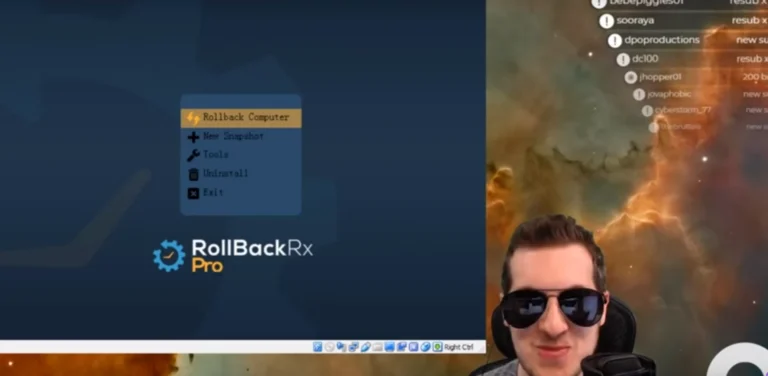
RollBack Rx Server Edition from Horizon DataSys is designed for IT teams considering rollback protection in server environments. It is relevant when a recent system change may need to be reversed to restore a working state. It does not replace backups for recovering lost files or data, so choose the approach that fits the problem.
For Windows PC environments in libraries, schools, and other shared settings, consider whether server rollback fits your recovery plan and operational needs. Horizon DataSys also offers RollBack Rx Professional for professional environments. Contact Horizon DataSys to discuss how RollBack Rx Server Edition fits your requirements.
Build a recovery plan that fits your environment
The right server rollback software should fit the systems you manage and the recovery outcomes you need. Horizon DataSys offers advanced solutions like RollBack Rx Professional and RollBack Rx Server Edition. Discuss your environment’s rollback needs with Horizon DataSys to identify a relevant offering, while keeping backup and broader recovery planning in view.
Discuss your rollback needs with Horizon DataSys and take a practical next step toward a more prepared recovery plan.
Frequently Asked Questions
Why roll back?
Rollback can restore a previously working configuration when a new change disrupts a service. If staff can no longer open a shared application after an update, for example, returning the affected system to its earlier state may restore access while the issue is investigated. Rollback is most useful when the timing and impact point to a specific change, rather than an unrelated failure elsewhere in the environment.
Can rollback be used to recover lost or deleted files?
Rollback usually is not the best way to retrieve an individual deleted file. If a staff member removes a shared document, restoring that file from a backup or using a specialized data recovery tool is more targeted than reverting an entire server. A system rollback can affect other components too. Identify whether the problem is a missing file or a system change before choosing a recovery method.
Does rollback affect all users of a system or software?
Is it possible to partially roll back changes instead of reverting all modifications?
Yes, some rollback methods can target specific changes while preserving others. The practical limit depends on whether the tool can distinguish and reverse those changes separately. For example, a sufficiently granular method may revert application code without changing a separate configuration. If changes are tightly linked, reversing only one part can leave the system inconsistent, so test the intended result before relying on it.
What is Rollback?
A rollback returns a system, application, or configuration to an earlier state. Think of it as reversing a recent change rather than rebuilding the entire environment. After a faulty driver change, for example, an administrator may use Windows Device Manager’s rollback option. The method depends on what changed and which recovery options the system provides.
When should I consider a rollback instead of other troubleshooting methods?
Consider rollback when a problem appears after a specific change and the affected component is clear. If a server application stopped working directly after a release, reverting that release may be a reasonable recovery choice. If symptoms began earlier or multiple systems show unrelated faults, investigate further before reversing changes. Rollback can restore service, but it will not diagnose the underlying cause.
What is server rollback software and how does it work?
Server rollback software helps return a server to a previous system state after a change causes a problem. Depending on the software, it may use snapshots or another recovery method to capture and restore system states. Horizon DataSys describes RollBack Rx Server Edition as using sector-level snapshots for recovery below the Windows operating system. This approach is intended to restore a prior state without full drive re-imaging.