
What if restarting a shared computer could clear user changes without restoring files from a backup? That’s the distinction at the heart of reboot to restore software: it returns a configured endpoint to a clean baseline on restart, rather than rolling the system back to one of several saved points in time. For IT teams that regularly clean up and reconfigure shared PCs, this model can reduce routine reset work. The key question is which changes will remain after a reboot.
A consistent, ready-to-use experience matters when different people use the same computer. But reboot-based resets aren’t a substitute for backups, and they won’t suit every endpoint or change-management process. This article explains how the reset-to-baseline model works, how it differs from backups and snapshot recovery, and where it may or may not fit. It also covers what to assess before deployment, including how approved updates and baseline changes will be managed.
Key Takeaways
- Use reboot to restore software when shared endpoints need to return to a consistent, approved baseline after each restart.
- Identify the files, settings, and user workflows that must persist before deciding which changes should be reverted.
- Distinguish a reset-to-baseline policy from backups and snapshot rollback. Each serves a different recovery need.
- Plan how to maintain the approved baseline so necessary updates and configuration changes aren’t lost during routine resets.
- Compare Reboot Restore Standard and Enterprise based on your environment, including whether centralized management is required.
What Is Reboot to Restore Software, and What Does It Reset?
On a shared Windows computer, one person’s session can leave altered settings, downloaded files, or other changes that affect the next user. Repeating manual cleanup takes time and can make workstations less predictable. Reboot to restore software returns configured endpoint changes to a designated baseline when the computer restarts. The reset applies to the changes and areas covered by the product’s configuration, not necessarily every file or setting on the device.
The baseline is an approved system state that administrators establish and maintain. For a broader overview of the approach and its uses, see Reboot to restore software. Before choosing a product, identify which changes are included in the reset and which must persist for users or administrators.
What does “restore on reboot” mean in practice?
Imagine a classroom workstation configured with the required applications and settings. A student changes a desktop preference or downloads a file during a session. After the computer restarts, configured changes are reverted, returning the workstation to its approved starting state. The next student can begin with a consistent environment.
This process resets configured parts of the endpoint. It isn’t the same as deleting a user account or reinstalling Windows. The account and operating system remain in place, while the software applies its reset behavior during restart. Exactly what returns to baseline depends on the product and its configuration. Before deployment, confirm how user data, application settings, and other changes are handled.
Which environments commonly consider reboot-to-restore software?
It can be useful wherever different people use the same workstation and administrators need a consistent starting point. Examples include:
- Library computers used by members of the public
- Classroom and computer-lab workstations shared by students
- Public-access desktops in other shared-use settings
These aren’t the only possible use cases. Organizations may also assess the approach for other shared or task-specific Windows endpoints. The fit depends on whether users can tolerate configured session changes being reverted and whether necessary files or work can be stored somewhere that remains available after the reset. If users need local changes to persist, define how that requirement will be handled before applying the software.
How Reboot-to-Restore Software Works Across a Restart
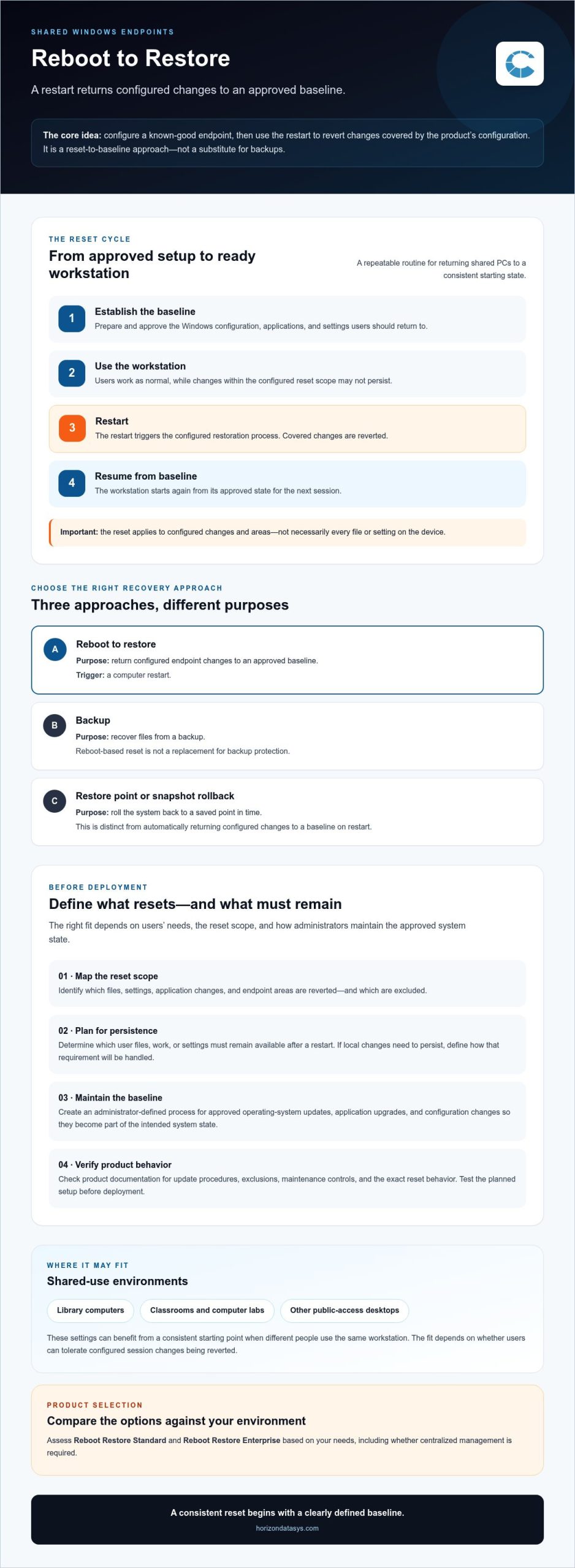
The process starts with a known-good endpoint, not with the restart itself. An administrator configures Windows, applications, settings, and other system elements to create the approved baseline. Once that baseline is in place, reboot to restore software applies its configured reset behavior when the computer restarts, returning covered changes to that state.
The basic sequence is straightforward:
- Establish: Prepare and approve the workstation configuration users should return to.
- Use: Allow normal work, knowing that changes within the reset scope may not persist.
- Restart: The reboot triggers the configured restoration process.
- Resume: The workstation starts from the approved baseline for its next session.
This routine is intended to restore configured changes during the reboot cycle, rather than require IT staff to manually re-image a workstation after each user session. Exact behavior depends on the product and its settings. Confirm what is protected, reverted, or excluded in the planned deployment.
From approved baseline to restored workstation
A baseline needs to be deliberately prepared before automated resets can provide a consistent result. It should reflect the organization’s intended system state, including the applications and settings needed for the endpoint’s role. If the starting configuration is incomplete or out of date, the restart will return the computer to that same state.
During a session, users may change settings or add files. After a restart, changes covered by the configuration are reverted, and the computer returns to its approved state. Reboot restoration is not a full operating-system reinstallation. It’s a repeatable reset of configured endpoint changes, with the operating system still in place.
How administrators handle approved changes
Baselines need maintenance as well as protection. Operating-system updates, application upgrades, and planned configuration changes should follow an administrator-defined process. That way, approved work becomes part of the intended system state instead of being lost in a routine reset.
Before deployment, check the product documentation for the exact steps to apply updates, configure exclusions, or use any maintenance controls. Don’t assume these procedures are identical across products or versions. Test the organization’s update workflow on a limited set of endpoints first. Then confirm that approved changes remain after subsequent restarts before expanding deployment.
For organizations evaluating this reset model, Horizon DataSys Reboot Restore information can help connect the operational workflow to Windows endpoint software.
Reboot to Restore vs. Backups, Restore Points, and Snapshot Rollback
These tools address different recovery needs. Reboot restoration returns configured endpoint changes to a baseline, file backups help recover saved data, Windows restore points target system configuration, and snapshots let you roll a system back to a captured state. Choosing one doesn’t automatically cover the others.
| Approach | Primary purpose | What to keep in mind |
|---|---|---|
| Reboot restoration | Return configured endpoint changes to an approved baseline on restart. | It isn’t designed to preserve every user change or recover individual files. |
| File backup | Preserve data so files can be recovered if they’re deleted, damaged, or unavailable. | Coverage and recovery depend on the backup system and its configuration. |
| Windows restore point | Revert certain Windows system files, settings, or installed software state. | It isn’t a general-purpose backup of personal or business files. |
| System snapshot | Capture system state for rollback to a selected point. | Capabilities and recovery scope vary by product. |
Does reboot-to-restore software replace backups?
No. A workstation reset and a backup solve separate problems. If an employee saves a project file locally and that file is deleted or damaged, returning the endpoint to its baseline won’t necessarily recover it. Important organizational and user data still needs a suitable backup plan based on what must be recoverable.
Reboot to restore software also isn’t a complete security strategy or a guarantee against malware. It can reset configured endpoint changes, but organizations should continue to assess their broader security controls and recovery needs.
How is it different from RollBack Rx snapshot recovery?
Reboot Restore returns configured systems to a clean baseline on restart. RollBack Rx uses sector-level snapshots to revert a system to a captured state, rather than automatically resetting it to a single baseline on every reboot. These are distinct recovery mechanisms, not interchangeable names for the same process.
Match the approach to the required outcome: routine consistency after shared sessions, recovery of important files, or rollback to a selected system state. Confirm the product’s documented capabilities and scope before relying on it.
Assessing Reboot-to-Restore for Windows Environments
Before choosing reboot to restore software, assess how people use each Windows endpoint and what needs to remain consistent. The model is generally a better fit for workstations where users should start from a predictable configuration and session changes can be reverted. It may create friction if people depend on persistent local work, specialized settings, or application workflows that expect changes to survive a restart.
Is the reboot-reset model suitable for your users?
Start with user impact, not the reset setting. Ask whether people save work locally, rely on customized preferences, or use applications that store important data on the workstation. Identify where those files and settings need to live, and whether users have a clear way to preserve unfinished work. If normal tasks depend on local changes surviving, determine how the policy can accommodate them before proceeding.
What should IT validate before deployment?
Build an endpoint inventory that records each device’s role, required baseline, approved applications, and update responsibilities. Define who can approve baseline changes and how users will learn that a restart may revert session changes. Check current product documentation for Windows compatibility, edition requirements, management needs, and procedures for retaining approved updates. Test expected behavior on representative devices before expanding deployment.
Use this short readiness checklist to expose policy gaps:
- Endpoint purpose: Is the device shared, and does its role call for a consistent starting configuration?
- User work: Which files, settings, or application workflows must persist after restart?
- Baseline ownership: Who approves changes to applications, system settings, and updates?
- Operational fit: Can users understand the reset behavior, and can IT support the defined maintenance process?
- Validation: Have compatibility and reset behavior been checked on representative Windows devices?
A “no” or an uncertain answer doesn’t automatically rule out the approach. It signals a need to clarify data handling, user communication, or change ownership before setting the reset policy. Keep the assessment specific to device roles. A shared lab workstation and an endpoint used for ongoing individual work may have very different persistence requirements.
Once these criteria are clear, compare them with the available endpoint reset options. Review Horizon DataSys Windows endpoint software as part of that evaluation.
Horizon DataSys Reboot Restore: Choosing a Practical Next Step
If your evaluation points to shared Windows endpoints that need a consistent state after restart, Reboot Restore Standard and Reboot Restore Enterprise are options to compare. Both automatically return configured systems to a clean baseline on restart. The practical distinction to assess is whether you need centralized management across a network environment, which Enterprise provides.
When to evaluate Reboot Restore Standard or Enterprise
Consider Reboot Restore Standard when evaluating baseline restoration for shared or public-access computers. Reboot Restore Enterprise is worth assessing when administrators need centralized management across networked endpoints. In either case, match the edition to how devices are managed and how approved baseline changes will be maintained. The reset model alone doesn’t address every operational need.
Before selecting an edition, confirm current differences, licensing terms, supported Windows configurations, and any requirements that apply to your environment. These details can change, so rely on current product documentation rather than assumptions based on device count or a general description.
What to confirm before choosing an edition
Use the results of your endpoint assessment to verify the points that affect deployment and day-to-day administration:
- Endpoint scope: Identify which workstations are in scope and whether they share a consistent role or baseline.
- Compatibility: Check supported Windows versions and edition requirements for the specific devices you plan to protect.
- Management needs: Decide whether centralized management is necessary for your network environment.
- Baseline maintenance: Confirm the documented process for applying approved updates and changes so they’re retained as intended.
- Broader protection: Keep appropriate backup and security controls in your environment plan. Reboot restoration doesn’t replace them.
A limited evaluation can help confirm that the chosen reset behavior fits real user workflows and that administrators can maintain the approved baseline. Check how expected changes behave after a restart, and verify management and compatibility requirements before making a broader selection. That gives IT a clearer basis for choosing between the editions.
For organizations whose requirements align with returning configured endpoints to a clean baseline on restart, review the Reboot Restore product details and confirm current compatibility and edition requirements before selecting a solution.
Choose a Reset Approach That Fits Your Workstations
Reboot to restore software can help keep shared Windows endpoints consistent by returning configured systems to an approved baseline on restart. Its value depends on knowing which changes should revert, which files and workflows must persist, and how administrators will maintain the baseline.
Keep the recovery roles distinct: endpoint resets support a predictable starting state, backups preserve data for recovery, and snapshot tools support rollback to a captured system state. None should be treated as a replacement for the others or as a complete security strategy. Before selecting a solution, confirm Windows compatibility, edition requirements, management needs, and the process for retaining approved updates.
Reboot Restore Standard and Reboot Restore Enterprise both restore configured systems to a clean baseline on restart. Enterprise also includes centralized management tools for network environments. Review current requirements and product details to determine which, if either, fits your endpoints.
Explore Horizon DataSys Reboot Restore solutions to evaluate a reset policy for a more consistent workstation experience.
Frequently Asked Questions
What is reboot-to-restore software?
Reboot-to-restore software returns configured computer changes to an approved baseline when the device restarts. Organizations often consider it for shared Windows workstations, such as computers in a library or lab, where each user should begin with a consistent setup. The reset scope depends on the product and its configuration, so not every file or setting necessarily reverts. This approach is distinct from file backup and doesn’t replace backup or other security controls.
How does reboot-to-restore software work?
An administrator establishes an approved system baseline, users work on the endpoint, and a restart triggers restoration of configured changes to that baseline. This can reduce routine manual cleanup on shared computers. Administrators still need a controlled process for applying approved updates and configuration changes so they’re retained as intended. Setup and maintenance steps vary by product. Check current documentation and test the workflow before deploying it across an organization.
Does reboot-to-restore software delete all files on restart?
Not necessarily. What reverts depends on the product’s configuration and which parts of the endpoint it protects. Don’t assume that every file, account, or setting is erased, or that user data automatically persists. Before deployment, identify what users need to keep and validate how the selected product handles those files and settings. Important organizational data should have an appropriate backup strategy independent of endpoint restoration.
Is reboot-to-restore software the same as backup software?
No. Reboot-to-restore software returns configured endpoint changes to a baseline after restart, while backup software is designed to preserve data for later recovery. A reset doesn’t, by itself, provide a historical copy of a deleted or damaged file. The approaches can complement each other, but they solve different problems. Organizations should define separate plans for maintaining endpoint consistency and protecting important user or business data.
Can reboot-to-restore software protect a computer from malware?
It can return configured endpoint changes to a baseline after a restart, but that doesn’t make it complete malware prevention or response. Its effect depends on the system, product configuration, and the nature of the issue. Use endpoint restoration alongside appropriate security controls, patch management, and data protection rather than relying on it alone. Before describing security outcomes, verify the product’s current documentation and avoid treating a reset as a guarantee against malware.
What is the difference between Reboot Restore and RollBack Rx?
Reboot Restore returns configured systems to a clean baseline on restart. RollBack Rx uses sector-level snapshots to roll a system back to a captured state. They support different recovery workflows and aren’t interchangeable. Compare the reset behavior, recovery scope, and management needs your organization requires. Before choosing, verify current edition capabilities and Windows compatibility in Horizon DataSys documentation, and plan separately for backups and other security controls.
Is reboot-to-restore software suitable for business computers?
It may suit business endpoints that need a consistent baseline, particularly computers shared by multiple users. Fit depends on whether files, settings, or work must persist after restart, how administrators will maintain approved updates, and what management capabilities the environment requires. Identify representative user workflows, then test expected reset behavior on suitable devices. This helps determine whether the policy supports day-to-day work before deployment expands across the organization.