
Automated endpoint recovery software for business devices

A deleted file shouldn’t require rebuilding an entire computer. Automated endpoint recovery software can restore individual files or folders, roll an operating system back to an earlier state, or recover a full device remotely, depending on the recovery method and the data available. That gives IT teams a way to address accidental deletion and ransomware disruption at the scale the incident requires.
In a library, school, or other shared Windows environment, restoring one user’s folder is different from returning a damaged PC to service. Both tasks matter when staff need to restore devices without handling every repair on-site. This article explains how file and folder recovery differs from operating system repair and full-device recovery, what remote restoration involves, and how to choose an approach for the problem. It also explores how recovery software can help keep endpoints consistent and reduce repetitive administrative work.
Key Takeaways
- Match the recovery method to the problem: a deleted folder, a damaged operating system, and a full-device failure call for different restoration scopes.
- Plan remote recovery around how endpoints are managed and what access is available, so routine incidents can be handled without an on-site visit.
- For ransomware or accidental deletion, understand what recovery points can restore and how they fit alongside backup practices.
- Distinguish file-level recovery from bare-metal recovery to choose the right path when data is missing or a device needs rebuilding.
- Compare tools by their recovery capabilities and supported device types, then align those features with the needs of your Windows environment.
Remote recovery without on-site intervention
Remote recovery lets an IT team initiate supported repair workflows without visiting each Windows device. A key distinction is whether the endpoint is online, offline, or able to reconnect later.
Remote and Offline Endpoint Recovery
For an online device, an administrator can initiate a remote restore if the recovery system can communicate with it. For example, a library PC with a damaged configuration may receive a rollback instruction through its management connection. The result depends on the recovery method and the endpoint’s current state.
An offline device can’t receive a remote command while disconnected. A practical workflow records the required action and applies it when the endpoint reconnects, if the system supports that approach. If a device can’t boot normally, recovery may require a local recovery environment or another approved access path. Treat “remote” and “offline” as separate capabilities.
Feature and Device Support
Compare tools by the recovery actions they support, not by the word “automation” alone. Check whether a workflow can restore files, folders, system settings, an operating system, or an entire device. Then confirm that the supported Windows configurations match the library’s or school’s endpoint fleet.
Remote remediation may begin with a health-check failure, security alert, or administrator instruction. An automated endpoint recovery software workflow should define its trigger, target device, restore point, and completion status. These details distinguish a targeted repair from a full rollback and make results easier to review across shared workstations.
Deployment and Configuration
Organizations typically begin by identifying device groups, recovery scenarios, and administrative permissions. They then deploy the recovery component through an existing endpoint-management process, configure policies for each group, and test a restore on representative devices. A hybrid environment may need separate policies for campus PCs, remote laptops, and devices that connect intermittently.
Integration with MDM, RMM, EDR, and ITSM platforms can coordinate deployment, alerts, and records. MDM may distribute configuration, RMM may surface device status, EDR may provide a threat signal, and ITSM may record the incident and response. Integration depends on supported connectors, APIs, or scripts, so map the workflow before rollout.
In the United States, software cost depends on factors such as device count, required recovery scope, deployment model, and support needs; pricing is provided after a quote request. For businesses seeking broader infrastructure guidance, managed IT providers like SpaceCenter Systems can assist with assessing technology environments and support requirements. Before deployment, define which team can trigger recovery, which events require approval, and where audit details belong. These steps keep automated workflows controlled and repeatable.
Automated operating system repair and rebuilds
A damaged Windows installation can disrupt work across a shared endpoint. Recovery planning should distinguish system repair from rebuilding the operating system. Repair addresses supported faults while retaining the existing environment where possible. A rebuild replaces that environment, so plan how to restore approved settings and applications.
Start by identifying the failure. A failed update, changed configuration, corrupted system files, or suspected malware may call for different responses. For example, if a classroom PC fails after a configuration change, restoring an earlier system state may be appropriate. More extensive operating system damage may require a rebuild. Automated endpoint recovery software can run a configured recovery action, but the right scope depends on the issue and available recovery points.
A rebuild doesn’t automatically restore user files. Before choosing this route, identify which documents to retain, which applications to reinstall, and whether network access is available. An encrypted drive may require credentials before administrators can access its contents. Treat operating system restoration and user-data recovery as separate decisions in the recovery plan.
Options include Windows recovery tools for supported operating system repairs and backup platforms for restoring saved files or system images. These serve different needs: repair tools target system faults, while backup platforms provide copies for later restoration. An organization may use them alongside a rollback workflow, depending on its recovery requirements.
Endpoint management can help administrators apply consistent policies across device groups. Define the target group, the event that prompts review, the recovery state, and how completion will be recorded. For example, a device health alert can prompt an administrator to review the endpoint before starting a restore. Test the sequence on a representative device before applying it more broadly.
Use this order to plan a recovery:
- Identify the affected device and record the symptoms.
- Choose repair, rollback, or rebuild based on the failure.
- Confirm required files and applications have a recovery path.
- Run the selected action and review the restored endpoint.
Network access affects how a remote policy or command reaches a device. A disconnected endpoint can’t receive a new remote instruction until communication resumes. Plan a suitable local recovery process for that situation. After recovery, review device status and security alerts before returning the computer to shared use.
Monitor recovery workflows and refine triggers that cause unnecessary actions. If compromise is suspected, treat threat investigation and operating system recovery as separate tasks. A rebuild can return a device to a usable configuration, but it doesn’t establish what happened to data. Automated endpoint recovery software works best as part of a defined organizational recovery process.
Ransomware and accidental-deletion recovery
A recovery plan should treat a ransomware incident differently from a misplaced document. After accidental deletion, the immediate task is finding a suitable restore point and recovering the affected file or folder. With ransomware, first establish which devices and data may be affected. Then coordinate recovery with the organization’s security response rather than restoring blindly.
Scheduled backups support recovery after accidental deletion, corruption, or security incidents. A useful workflow identifies critical folders, sets a recurring backup schedule, and records where recovery data is stored. For example, a school could prioritize shared lesson materials and administrative documents. Set the schedule according to how often files change and how much recent work users may need restored.
The 3-2-1 backup rule is one strategy organizations consider when planning backup protection. Automated backups can also cover different environments: according to the National Institute of Standards and Technology (NIST), backup systems can address endpoints, servers, cloud services, and network-based systems, using agent-based or agentless, on-premises or cloud-based capabilities. Match the deployment to the systems and data the organization needs to recover.
For a ransomware event, follow a deliberate sequence. Identify affected endpoints, contain the incident using established security procedures, and determine which recovery point predates the unwanted changes. Restore only after the response team has assessed the affected device and selected a clean recovery source. A rollback or file restore can return data or system state, but it doesn’t replace incident investigation.
- Record the affected device, user, and missing or changed data.
- Determine whether the cause was deletion, corruption, or ransomware.
- Select the recovery point and scope, such as one folder or an endpoint.
- Restore the selected content, then review access and endpoint status.
For accidental deletion, keep the restore scope narrow. If a staff member removes one shared folder, recovering that folder may preserve newer work elsewhere. If a device’s operating system or many files are affected, a broader recovery may be appropriate. Clear restore options help reduce unnecessary disruption across distributed school or library workstations.
During deployment, define which data receives scheduled backup and who can initiate recovery. Record each workflow’s trigger, target, and outcome in the organization’s incident process. A test restore can show whether selected files are available and usable. Include a disaster recovery exercise covering both a deleted document and a ransomware-affected endpoint.
Finally, distinguish endpoint recovery from backup storage. Recovery tools can return a device or system state to a selected point; backup platforms preserve copies for later restoration. A coordinated plan defines how the approaches work together, so an automated recovery action supports incident response rather than obscuring it.
Bare-metal and file recovery
Bare-metal recovery rebuilds a device’s operating environment after serious system failure. File recovery restores selected items, such as a deleted document or folder. The distinction matters in a school computer lab: a damaged Windows installation may need a full rebuild, while a missing assignment may need only file-level restoration.
For file recovery, identify the affected path, required version, and recovery source. If a staff member deletes a shared spreadsheet, restoring that file can preserve unrelated changes made elsewhere. Confirm that the restored copy opens and contains the expected information before making it available to the intended user.
A bare-metal workflow addresses a broader failure. It may involve restoring a system image or reinstalling Windows, then applying the organization’s approved configuration and applications. Before selecting this route, identify the endpoint model, required drivers, network access, and any encryption credentials needed for access. A recovery source must match the intended device and operating environment.
Use a clear decision sequence to select the recovery scope:
- Identify whether the issue affects one file, a folder, or the whole endpoint.
- Choose a file restore, system rollback, or full rebuild accordingly.
- Confirm the recovery source and the device’s access requirements.
- Restore the selected scope, then test the result before normal use.
Platform capabilities determine which steps can be automated. One system may handle selected files, while another focuses on endpoint state or full-device recovery. Compare the required recovery scope, supported Windows configurations, and available administration controls. In a distributed environment, consistent workflows can help staff follow the same process across library branches or school buildings.
Downtime depends on the failure and recovery path, not simply on whether a tool is automated. Restoring one file may involve fewer tasks than rebuilding Windows, reinstalling applications, and returning settings to an approved state. Reduce avoidable delays by documenting recovery sources, device roles, and post-rebuild task order before an incident occurs.
Monitoring helps administrators determine whether a workflow completed and whether the endpoint is ready for use. Record the affected device, selected restore scope, and any follow-up action. For example, a rebuilt classroom PC may need a network access and application review before students use it again.
Keep file recovery and bare-metal recovery distinct in the organization’s plan. A file restore addresses specific user data; a full rebuild addresses a wider system failure. Matching the method to the problem can minimize unnecessary work and return the right endpoint to service.
Comparing Features of Leading Endpoint Recovery Tools
Compare recovery tools by the problems they solve, not by broad labels. One platform may focus on restoring system state, while another emphasizes saved files or operating system rebuilds. For a Windows lab, start with a real scenario, such as returning a shared PC to its approved configuration after unwanted changes.
Build a comparison around recovery scope, supported devices, administration, and reporting. Record whether each tool handles individual files, folders, operating system state, or full-device recovery. Then map those capabilities to your environment. A school with shared desktops may prioritize consistent workstation recovery, while staff laptops may need different workflows.
- Recovery scope: Identify whether it restores files, folders, system state, or a whole endpoint.
- Device support: Match supported Windows configurations to the devices your organization manages.
- Administration: Review how administrators configure policies and initiate recovery actions.
- Visibility: Determine what status and completion details administrators can review.
Pay close attention to supported devices. A tool that fits one Windows configuration may not suit every computer in a mixed fleet. Compare the operating systems and device roles your team actually uses, including library workstations, classroom PCs, and staff endpoints. A clear fit reduces surprises during deployment and everyday administration.
Next, examine how each product handles routine operations. Can an administrator select a recovery scope, target a device, and review the action afterward? These are practical evaluation questions, not assumed features. A deleted folder, for example, calls for a different action than a workstation that can’t load its operating system.
Integration also affects daily workflows. Map how recovery actions relate to endpoint management, alerts, ticket records, and security review. An automated endpoint recovery software option should fit the organization’s existing process without creating unclear ownership. Document which team approves a restore, who reviews the result, and where the record belongs.
Use a small evaluation plan before wider deployment. Select representative devices, define a test scenario, and record the expected outcome. For instance, test whether the chosen approach returns a designated workstation to its baseline after a controlled configuration change. Review the result, administrative effort, and follow-up steps before expanding use.
Keep the comparison focused on operational priorities. A library may value consistent recovery for public workstations; a school may need distinct policies for labs and staff devices. Rank requirements by importance, then assess each platform against the same scenarios. This makes trade-offs clear without assuming one tool suits every endpoint equally well.
Explore endpoint recovery options to assess how recovery workflows can fit your Windows environment.
Horizon DataSys
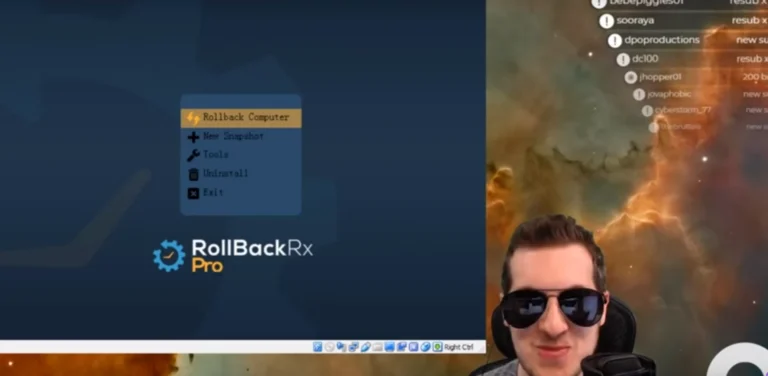
Horizon DataSys offers RollBack Rx Professional and RollBack Rx Server Edition for organizations evaluating recovery options for Windows environments. These products can help your team assess how endpoint recovery fits its device roles, restore workflows, and administration needs. Distinguish workstation requirements from server requirements, then identify the recovery scenarios your organization needs to address. A clear scope helps you evaluate the right option without treating file backup, operating system repair, and full-device recovery as interchangeable. Contact Horizon DataSys to discuss your endpoint recovery needs.
Build a Recovery Plan Your Team Can Use
A recovery strategy is useful when administrators can apply it consistently during an incident. Define who can initiate recovery, what approval is needed, and how the team records the outcome. Review these decisions as your Windows environment changes, since new devices, applications, and user groups can affect which workflows remain practical. Treat automated endpoint recovery software as part of a broader operational plan, with clear roles for endpoint restoration, security response, and data protection.
For IT teams in schools, libraries, and other shared-computer environments, the next step is to align recovery choices with everyday device management. Consider the endpoint types you support and the disruptions your team needs to address. A clear plan gives administrators a steadier path from incident to restored service. Discuss your endpoint recovery approach with Horizon DataSys, and take the next step toward a more manageable recovery process.
Frequently Asked Questions
Can I restore individual files or full folders?
Yes, if the recovery method supports file-level restoration and a usable recovery copy exists. For example, a staff member may need a deleted lesson plan restored without replacing other files changed since. Automated endpoint recovery software can support this workflow when it provides the required restore scope. Before restoring, identify the needed version and destination, then confirm the recovered files open correctly for users.
How does this support compliance mandates like GDPR or HIPAA?
Recovery software can support operational resilience, but it doesn’t establish compliance with GDPR or HIPAA by itself. Consider how recovery actions fit your organization’s access controls, data-handling procedures, and recordkeeping practices. For example, define who can initiate a restore involving sensitive files and how the action is documented. Compliance depends on the broader program, including policies and safeguards beyond endpoint recovery.
Is recovery possible for off-network or remote devices?
It depends on the recovery method and the device’s state. A remote endpoint that communicates with its management system may receive a recovery action through that connection. A fully offline device cannot receive a new remote instruction at that moment. For a traveling staff laptop, plan a local recovery path for times without network access, and define how to handle any pending action after reconnection.
What’s the impact on downtime and lost productivity?
Downtime varies with the failure, recovery scope, endpoint condition, and availability of a usable recovery source. Restoring one document usually involves fewer steps than returning a computer to service after operating system damage. A school can limit disruption by assigning approval roles and prioritizing devices needed for time-sensitive work. Testing the workflow can reveal practical delays before an incident affects daily operations.
What is automated endpoint recovery software and how does it work?
Recovery software helps return a computer or selected data to a defined earlier state through configured recovery actions. Depending on the system, an administrator may select a recovery point, set policies, or use a trigger to begin restoration. For example, a shared workstation can return to an approved baseline after unwanted changes. Available recovery scope depends on the product’s features and configuration.
What features should endpoint recovery software include?
Start with the outcomes your team needs: file restoration, system rollback, operating system repair, or full-device recovery. Then assess supported Windows configurations, administrative controls, recovery-point selection, and status visibility. Automated endpoint recovery software should fit your environment’s device roles and workflows. A library managing public workstations may prioritize baseline restoration, while staff computers may need more selective recovery controls.
What are the best endpoint recovery products to evaluate in 2026?
There isn’t one best choice for every Windows environment; match capabilities to your recovery needs. Horizon DataSys offers solutions that return shared computers to a clean baseline on restart, and advanced options that capture snapshots and roll systems back. Consider centralized management options for enterprise network environments, or professional and server editions tailored for specific workstation and server recovery needs.
What security, privacy, and compliance risks should buyers consider?
Review who can start recovery, which devices and files they can affect, and how actions are recorded. A mistaken rollback could remove legitimate changes, while poorly controlled access could expose sensitive system states. Consider how automated endpoint recovery software fits existing security and privacy procedures. For example, assign recovery permissions to appropriate roles and document how administrators review actions after an incident.